Showing posts with label Active Directory. Show all posts

PALO ALTO #How to configure user mapping

Palo alto can utilize User AD Mapping in conjunction with AD groups and IP Addresses.

These are two articles that well explain on how to proceed with server and Palo alto user AD authentication

Next-Generation Firewall Configure Server Monitoring Using WinRM

Next-Generation Firewall Create a Dedicated Service Account for the User-ID Agent

Citrix #how to push Citrix Workspace app for windows through GPO

Citrix Workspace app has possibility to be pushed through GPO, using proper scripts and ADMX/ADML templates for Group Policy Editor

All details can be found at below link:

https://www.citrix.com/downloads/workspace-app/legacy-workspace-app-for-windows-ltsr/workspace-app-for-windows-2402-LTSR-cu2.html

Consider that PDQ product is not able to push software after reboot/shutdown so, this solution, permit to override this software limit

https://documentation.pdq.com/pdqdeploy/13.0.3.0/index.html?logoff-step.htm

https://www.alessandromazzanti.com/search?q=pdq

Be aware that latter VDI Teams version have to utilize this Citrix WorkSpace setting enabled

So in cmd you need to add this value MTOPBootStrapperInstaller (to properly deploy teams plugin)

set CommandLineOptions=/Silent ALLOWADDSTORE=N /includeSSON /AutoUpdateCheck=Disabled EnableCEIP=false ADDLOCAL=ReceiverInside,ICA_Client,SSON,AM,SELFSERVICE,USB,DesktopViewer,Flash,Vd3d,Webhelper,BrowserEngine,WorkspaceHub,MTOPBootStrapperInstaller

start /wait %DeployDirectory%\CitrixWorkspaceFullInstaller.exe DONOTSTARTCC=1 %CommandLineOptions%

Scripting - Get-ADUser - How to retrieve User last logon date

There is an easy and quick way to get .TXT file with all AD Usernames and relatives last logon dates.

  1. You must execute Powershell module with Administrative rights.
  2. Import-Module activedirectory
  3. Get-Help Get-ADComputer
  4. Get-ADUser -filter * -Properties * | Select-Object SamAccountName, Company, @{Name="Manager";Expression={(Get-ADUser $_.Manager).sAMAccountName}}, enabled, LastLogonDate , AccountExpirationDate, displayname, GivenName, surname, custJDEEmployeeID | Export-csv C:\temp\ADUsers.csv

here it is an alternative article related to AD computers

Security #30-day notice: Manage PAC Validation related to CVE-2024-26248 & CVE-2024-29056

The Windows security updates released on or after April 9, 2024 address elevation of privilege vulnerabilities with the Kerberos PAC Validation Protocol.


https://support.microsoft.com/en-us/topic/how-to-manage-pac-validation-changes-related-to-cve-2024-26248-and-cve-2024-29056-6e661d4f-799a-4217-b948-be0a1943fef1

Take Action

IMPORTANT Step 1 to install the update released on or after April 9, 2024 will NOT fully address the security issues in CVE-2024-26248 and CVE-2024-29056 by default. To fully mitigate the security issue for all devices, you must move to Enforced mode (described in Step 3) once your environment is fully updated.

To help protect your environment and prevent outages, we recommend the following steps:

  1. UPDATE: Windows domain controllers and Windows clients must be updated with a Windows security update released on or after April 9, 2024.

  2. MONITOR: Audit events will be visible in Compatibility mode to identify devices not updated.

  3. ENABLE: After Enforcement mode is fully enabled in your environment, the vulnerabilities described in CVE-2024-26248 and CVE-2024-29056 will be mitigated.
    (Install the April 2025 Windows update on all Windows domain controllers and Windows clients, once it becomes available later this year. Enforcement mode will be fully enabled in your environment. This will properly mitigate the vulnerabilities described in CVE-2024-26248 and CVE-2024-29056.)

Here it is another important article:

[update 2025.04.10]

Today I would like to highlight that if you installed January 2025 patch Enforced mode will be enabled by default.
The default Enforced mode settings can be overrided by an Administrator to revert to Compatibility mode changing propter registry key on all Domain Controllers (till, April 2025)


Security #February 2025 Deadline related KB5014754 and Certificate-based authentication changes on Windows domain controllers

Microsoft released, several months ago this important bulletin.

The key point is that, after February 2025 patch installation Windows domain controller certificate-based authentication will change (due to security reasons) to Full Enforcement mode. However, you can move back to Compatibility mode until September 2025.

There are several CA checks to be done to be sure that no problem will affect your organization.

One compatibility doubt that it might arise it could be related to organization that have no longer supported O.S. (like 2008 or older)

I think that working in compatibility mode might help to check, on internet, after February 2025 if any customer had some issues and find relative fixes/workarounds

In any case here they are essential checks that you should consider before enable “full enforcement mode”:

  1. Common Name (CN) and Subject Alternative Name (SAN): Must match the users or devices in Active Directory.
  2. Certificate Authority (CA): Certificates must be issued by a trusted and recognized CA.
  3. Certificate Chain: The certificate chain (including intermediate and root CA certificates) must be complete and valid.
  4. Revocation: It is necessary to check that the certificates have not been revoked.
  5. Time Validity: It must be verified that the certificates have not expired


KB5014754: Certificate-based authentication changes on Windows domain controllers

https://support.microsoft.com/en-us/topic/kb5014754-certificate-based-authentication-changes-on-windows-domain-controllers-ad2c23b0-15d8-4340-a468-4d4f3b188f16 

https://admin.microsoft.com/AdminPortal/home?#/MessageCenter/:/messages/MC894351


Server - How to debug DNS queries on Domain Controllers

On windows Server environment, it could be useful to debug and save any DNS query submitted to your domain controllers/DNS servers.

There is an easy way to achieve this goal.

In fact you need to enable DNS debugging mode.

After this feature is enabled you can check logs and identify devices that are querying specific DNS entries/websites.

This approach it is useful, at first, about security interdipendence as well...

  1. Open DNS Manager (dnsmgmt.msc)
  2. Right-click the DNS server and click Properties.
  3. Click the Debug Logging tab.
  4. Select Log packets for debugging.
  5. Enter the File path and name, and Maximum size.


[related articles]

Security - Kerberos and CVE-2022-37967

The November 8, 2022 Windows updates address security bypass and elevation of privilege vulnerabilities with Privilege Attribute Certificate (PAC) signatures. This security update addresses Kerberos vulnerabilities where an attacker could digitally alter PAC signatures, raising their privileges.

After this patch patch installation you must, to prevent DC problems, following 4 steps indicated in bottom article

KB5020805: How to manage Kerberos protocol changes related to CVE-2022-37967

Server - MMC GPO Security Options errors - MMC cannot initialize the snap-in

Using MMC snapin, on windows server (in my case on 2016 version), basically managing GPOs, you might face below errors.

I get the error message stated in the subject line whenever I try to open Computer Configuration >> Windows Settings >> Security Settings >> Local Policies >> Security Options >> from GPO.


I found three alternatives to manage this error:

Option 1

  1. This was broken with the September 8, 2020—KB4577015 update. currently the only solution is to uninstall it.

    https://community.spiceworks.com/topic/2291581-windows-2016-mmc-snap-in-error

  2. Then install KB4571694, reboot and try again or patch KB4580346 (I did not investigate at 100%)

    https://community.spiceworks.com/topic/2291581-windows-2016-mmc-snap-in-error

    https://learn.microsoft.com/en-us/answers/questions/124913/server-2016-mmc-has-detected-an-error-in-a-snap-in
Option 2
  1. Export REG key:

    reg export "HKEY_LOCAL_MACHINE\SOFTWARE\Microsoft\Windows NT\CurrentVersion\SecEdit\Reg Values\MACHINE/Software/Microsoft/Windows/CurrentVersion/Policies/System/DontDisplayLockedUserId" C:\Temp\DontDisplayLockedUserId.reg

  2. Deleting REG key

    reg delete "HKEY_LOCAL_MACHINE\SOFTWARE\Microsoft\Windows NT\CurrentVersion\SecEdit\Reg Values\MACHINE/Software/Microsoft/Windows/CurrentVersion/Policies/System/DontDisplayLockedUserId" /f

  3. Change GPO 

  4. Reimport Register key
    Double clicking here
    C:\Temp\DontDisplayLockedUserId.reg
  5. Original article: 

    https://learn.microsoft.com/en-us/answers/questions/124913/server-2016-mmc-has-detected-an-error-in-a-snap-in
Option 3

  1. On a full patched server or PC install RSAT and solve problem in this way
    https://www.alessandromazzanti.com/2019/05/windows-10-how-to-install-rsat-on.html

  2. Server - How to Execute RSAT snapins with different users without server/client logon necessity
    https://www.alessandromazzanti.com/2017/10/server-how-to-execute-rsat-snapins-with.html

REFERENCES

Active Directory - FSMO Seizing, DRSM Password Reset and Dc health checks/best practices

As mentioned on old blog posts it is important to know which DCs (in your domain/Forest) are holding five Active directory roles using this command line.

netdom query fsmo

At the same time it is important to test your DCs health.

https://www.alessandromazzanti.com/2015/05/server-commands-to-verify-domain.html.

If you are facing unlike situation that DCs holding all 5 Ad roles (or few of them)  are no longer working you should start planning Seizing roles activity.

Here it is a Microsoft article that well apply to all Microsoft Server versions.

https://support.microsoft.com/en-sg/help/255504/using-ntdsutil-exe-to-transfer-or-seize-fsmo-roles-to-a-domain-control

Here they are other important suggests:
  1. Microsoft best practices suggest to have at least a Physical Domain controller indeed to have all them virtualized:
  2. I warmly suggest to check all your server and to have local Administrator password (and account enabled).
  3. To check, on all your servers/Dcs to have indicated DNS1, DNS2 and DNS3 pointing to active DCs/DNS
  4. Have 5 AD roles splitted between at least two domain controllers.
  5. About Domain controllers have DRSM Administrator password, if not known proceed to have it resetted.

[update 2026.08.27]

Powershell

Get-ADForest | Select SchemaMaster,DomainNamingMaster
Get-ADDomain | Select PDCEmulator,RIDMaster,InfrastructureMaster


Security - Radius Server

 Here it is a basic article related to Radius protocol, I am taking note, on blog, for future purposes and, in case, it would be useful for seomeone


https://techgenix.com/radius-protocol-authentication-management-guide/

Windows 10 - Windows 10 logs

 STEP 1:

  1. Starting with Windows 10 build 9926, Windows Update logs are no longer saved to "%windir%\Windowsupdate.log".
  2. Windows Update client now uses Event Tracing for Windows (ETW) to generate diagnostic logs saved as .etl files in the "%windir%\Logs\WindowsUpdate" folder. This method improves performance and reduces disk space usage. However, the logs are not immediately readable as written.
  3. After Windows 10 build 9926 logs are here located but no longer readable.
  4. Click Windows key + R to open Run and type Evntvwr.msc -->  Applications and Service Logs\Microsoft\Windows\WindowsUpdateClient


STEP 2:

  1. Click Windows key + R to open Run and excute PowerShell with administrative rights and press Enter.
  2. Enter Get-WindowsUpdateLog into the elevated PowerShell, and press Enter.
  3. When finished running, this will create a WindowsUpdate.log file on your desktop. It will take a moment to finish.

STEP 3:

  1. Click Windows key + R to open Run and type cmd with administrative rights and press Enter.
  2. Type regedit.exe and press Enter.
  3. Browse to HKEY_LOCAL_MACHINE\SOFTWARE\Policies\Microsoft\Windows\WindowsUpdate\AU


  4. Change the key UseWUServer from 1 to 0
  5. Inside cmd with administrative rights execute below commands:
    1. net stop wuauserv
    2. net start wuauserv
  6. Open windows update:
    1. Run updates and select the option to get updates online.

STEP 4:

  1. Click Windows key + R to open Run and type cmd with administrative rights and press Enter.
  2. Type rsop.msc and press Enter.
  3. Check domain policies applied and verify Windows update section as well.


STEP 5:

Here they are some screenshots on how we could proceed, working on GPOs, changing bandwitch usage


Tips - How to fix “The sign-in method you’re trying to use isn’t allowed”

If you have necessity to logon to Domain Controller without having Domain Admins permissions you should  change Default Domain Policy checking if you users belongs to "Deny log on locally" section 

Computer Configuration > Policies > Windows Settings > Security Settings > Local Policies > User Rights Assignments

Here it is original article

https://www.top-password.com/blog/fix-the-sign-in-method-youre-trying-to-use-isnt-allowed/

Scripting - Get-ADComputer - How to retrieve computer last logon date

There is an easy and quick way to get .TXT file with all AD computer names and relativse last logon dates.


  1. You must execute Powershell module with Administrative rights.
  2. Import-Module activedirectory
  3. Get-Help Get-ADComputer
  4. Get-ADComputer -Filter * -Properties *  | Sort LastLogonDate | FT Name, LastLogonDate -Autosize | Out-File C:\Temp\ComputerLastLogonDate.txt


Alternative approach could be:
  1. $DaysInactive = 90
  2. $time = (Get-Date).Adddays(-($DaysInactive))
  3. Get-ADComputer -Filter {LastLogonTimeStamp -lt $time} -ResultPageSize 2000 -resultSetSize $null -Properties Name, OperatingSystem, SamAccountName, DistinguishedName
  4. Get-ADComputer -Filter {LastLogonTimeStamp -lt $time} -ResultPageSize 2000 -resultSetSize $null -Properties Name, OperatingSystem, SamAccountName, DistinguishedName | Export-CSV “C:\Temp\StaleComps.CSV” –NoTypeInformation
[original articles]


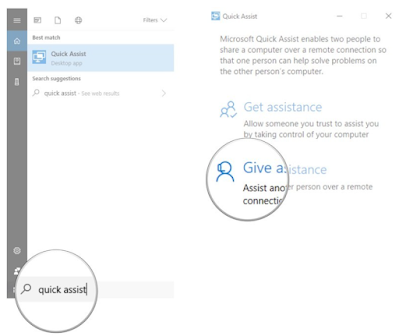
Windows 10 - Quick assist a free Teamviewer alternative

There is an interesting built in feature inside Windows 10 that permit to receive and give remote assistance (inside and externally your organization).

This feature is named "Quick Assist" and is easily usable finding it in yours Windows 10 device (secondly you need to authenticate using your Microsoft account):


Relative usage is well explained in below articles:

https://www.thewindowsclub.com/quick-assist-windows-10

https://www.windowscentral.com/how-use-windows-10-quick-assist

In present article I would like to share how to give remote assistance and execute applications, on remote client, that needs administrative rights.

Key point is necessity to create a proper GPO (or change client gpedit.msc settings) as below.

What I suggest is to make some changes in your GPO on how the UAC presents itself but does not turn it off.

Computer Configuration/Windows Settings/Security Settings//Local Policies/Security Options

Policy

Setting

User Account Control: Allow UIAccess applications to prompt for elevation without using the secure desktop

Enabled

User Account Control: Switch to the secure desktop when prompting for elevation

Disabled

After this change you will be able to execute administrative software on remote computers.


[original article]

https://answers.microsoft.com/en-us/msteams/forum/all/does-ms-teams-work-as-remote-support-tool/6eccdadc-9a5a-48cd-9ad0-080478b5ba6b

[update 2022.03.06]

https://docs.microsoft.com/en-us/windows/client-management/quick-assist


[update 2022.07.27]

RustDesk Teamviewer Alternative

https://www.html.it/magazine/rustdesk-alternativa-open-source-a-teamviewer/

Server - Active Directory Time syncronization problems

During these years I faced, on server and clients, several authentication problems due to wrong time and date.

Here they are some commands and tips useful for this troubleshottoing purpose:

1. Command useful on DC to see any time differences in place and relative (offset)

w32tm /monitor 

2. Run the following command on the PDC emulator:  

w32tm /config /manualpeerlist:timeserver /syncfromflags:manual /reliable:yes /update

Once done, restart W32Time service.

net stop w32time | net start w32time 

3. Run the following command on all other DCs (that are not PDC):  

w32tm /config /syncfromflags:domhier /update

Once done, restart W32Time service:

net stop w32time | net start w32time 

I have often, in recent years, to solve problems of e-mail or authentication domain generated from misconfigurations time servers. 

4. To check the source time server: 

w32tm /query /status

5. 
You can check registry entries if the domain controller is using NTP (should be on PDC) or NT5DS (on non-PDC):
Find the value of Type under 

HKEY_LOCAL_MACHINE\SYSTEM\CurrentControlSet\Services\W32Time\Parameters

reg query 
HKEY_LOCAL_MACHINE\SYSTEM\CurrentControlSet\Services\W32Time\Parameters

6. re-sync the w32time service using the following command:

w32tm /resync /rediscover

<---------->
7. Execute the following command to actually perform a time synchronization with the external source

w32tm.exe /config /update


Some articles and tools

port query Tool GUI


https://www.microsoft.com/en-us/download/details.aspx?id=24009


Technet - Windows Time Service Tools and Settings


https://technet.microsoft.com/en-us/library/cc773263(v=ws.10).aspx

Time Configuration in Active Directory

http://blogs.technet.com/b/nepapfe/archive/2013/03/01/it-s-simple-time-configuration-in-active-directory.aspx

Configure DC to synchronize time with external NTP server

https://community.spiceworks.com/how_to/65413-configure-dc-to-synchronize-time-with-external-ntp-server


[update 2021.03.04]

Here they are register keys related to date and time Windows services

Microsoft Registry
HKLM\SYSTEM\CurrentControlSet\Services\W32Time\Config
HKLM\SYSTEM\CurrentControlSet\Services\W32Time\Parameters
HKLM\SYSTEM\CurrentControlSet\Services\W32Time\TimeProviders\NtpClient
HKLM\SYSTEM\CurrentControlSet\Services\W32Time\TimeProviders\NtpServer


[update 2026.03.25]

w32tm /stripchart /computer:10.107.1.35 /dataonly /samples:5

Security - VMSA-2021-0002 Vmware 6.5/6.7/7.0 Vulnerability Severity 9.8

VMware vCenter Server updates address remote code execution vulnerability in the vSphere Client (CVE-2021-21972)

The vSphere Client (HTML5) contains a remote code execution vulnerability in a vCenter Server plugin. VMware has evaluated the severity of this issue to be in the Critical severity range with a maximum CVSSv3 base score of 9.8.

Known Attack Vectors

A malicious actor with network access to port 443 may exploit this issue to execute commands with unrestricted privileges on the underlying operating system that hosts vCenter Server. 

Resolution

To remediate CVE-2021-21972 apply the updates listed in the 'Fixed Version' column of the 'Response Matrix' below to affected deployments.

Workarounds

Workarounds for CVE-2021-21972 have been listed in the 'Workarounds' column of the 'Response Matrix' below.

More details here

https://www.vmware.com/security/advisories/VMSA-2021-0002.html

https://edge9.hwupgrade.it/news/security/gli-hacker-vanno-alla-ricerca-dei-server-vmware-non-patchati-una-grave-falla-permette-agli-attaccanti-di-violarli-facilmente_95865.html


Cisco - AnyConnect Domain Password change

Using Cisco Any Connect with AD users you may face that you account password is expired and you are unable to connect. To override problem you need to configure Cisco ASA to authenticate, to DC, indeed with normal LDAP standards (over 389 TCP port) using LDAPS (636 TCP port).

Your AD server must be able to authenticate via LDAPS (normally is not configured)

Here it is an article that explain how to do that

https://www.petenetlive.com/KB/Article/0001273

About LDAPS you can give a look to below article to have a major idea:

https://techcommunity.microsoft.com/t5/sql-server/step-by-step-guide-to-setup-ldaps-on-windows-server/ba-p/385362

https://www.petenetlive.com/KB/Article/0000962


P.S. 1 for LDAP(s) testing purposes you can use ldp.exe DC utility Open utility:

C:\> ldp.exe

From Connection, select Connect.

Enter name of target domain controller.

Enter 636 as port number (this is the LDAPS port).

Click OK to confirm the connection works.

You're all done!


P.S. 2 consider that Citrix Netscaler requires LDAPs to permit users to change password when it is expired (otherwise user is blocked)

Server - Domain Users can join computers to domain (up to 10) #It is a default domain policy

Few months I discovered that normal AD users are able to join computers to domain (up to 10) without particular grants or settings.

It was a very unexpected news for me.

Default limit to number of workstations a user can join to the domain

"By default, Windows 2000 allows authenticated users to join ten machine accounts to the domain.

This default was implemented to prevent misuse, but can be overridden by an administrator by making a change to an object in Active Directory.

Note that users in the Administrators or Domain Administrators groups, and those users who have delegated permissions on containers in Active Directory to create and delete computer accounts, are not restricted by this limitation."


Here it is AD attribute that define 10 maximum join numbers (you need to to use ADSIEdit.msc):

MS-DS-Machine-Account-Quota

https://docs.microsoft.com/en-us/windows/win32/adschema/a-ms-ds-machineaccountquota?redirectedfrom=MSDN

It is highly recommended to disable this features due to obviously security reasons:

https://docs.microsoft.com/en-us/archive/blogs/dubaisec/who-can-add-workstation-to-the-domain

REMEDIATION:

Due to security reasons is preferable that Authenticated Users cannot join domain computers.

You must modify "Default Domain Policy" permitting domain joins to specifics user or group.

Rafal Sosnowski (Microsoft Dubai Security PFE Team's member) says:

During my numerous Security Audits and Assessments I deliver to customers, I usually discover too wide permissions and user rights configured in Active Directory. One of them is “Add Workstation to the Domain”

It is important to control who can add new machines to our AD environment. Although we can enforce various security settings via GPO on newly added machines, user could join machine which is not configured according to our security standards and at the same time having ownership of various objects in the system (local admin account, ACLs on file system etc.).

<==================>

Here it is full article:

https://www.devadmin.it/2017/07/25/consentire-ad-utenti-non-amministratori-di-aggiungere-computer-a-dominio/


[update 2022.11.02]

KB5020276—Netjoin: Domain join hardening changes