Showing posts with label Microsoft 365. Show all posts

Microsoft #Windows Server end of support Microsoft 365 Apps on Windows Server 2016, 2019, 2022, or 2025.

TOPIC: Microsoft 365 Apps (*) end of support (a.e. Word, Excel, Outlook ...) on Windows Server 2016, 2019, 2022, or 2025.

END OF SUPPORT DEADLINES until:

  • Windows Server 2025: October 2029
  • Windows Server 2022: October 2026
  • Windows Server 2019: October 2025
    • In the interest of maintaining security while customers complete their migrations to a supported configuration, Microsoft will continue providing security updates for Microsoft 365 desktop apps running on Windows Server 2019 for a total of three years, ending on October 10, 2028.(**)
  • Windows Server 2016: October 2025
    • In the interest of maintaining security while customers complete their migrations to a supported configuration, Microsoft will continue providing security updates for Microsoft 365 desktop apps running on Windows Server 2016 for a total of three years, ending on October 10, 2028. (**)
IMPACTS:
  1. Microsoft 365 Apps (*) will not be longer supported after previous deadlines  related to O.S. versions earlier mentioned (but it does not mean that they will stop immediately to work properly ) 
  2. These deadlined will affect Virtual Desktops environments such Citrix VDA and gold image...
(*) Word, Excel, Powerpoint, Outlook for email, OneNote, OneDrive, Teams, Sharepoint

[Original articles]

Microsoft 365 Apps migration from Windows Server

(**) Windows Server end of support and Microsoft 365 Apps 


https://www.linkedin.com/pulse/microsoft-windows-server-end-support-365-apps-2016-2019-mazzanti-olgre

Tips #OUTLOOK #RULES errors - Tool &Fix

During these years it occurred several times to have Outlook email rules corrupted.

Here they are alerts that I received.


To fix this problem the best article and tool that I found is this one.

https://o365info.com/delete-corrupted-hidden-exchange-inbox-rules-using-mfcmapi/

Tutorial - Office 365 and Visio/project 2016 coexistence

Office installed with Click-to-Run and Windows Installer on same computer isn't supported.

Due to this reason you could read below article to have more information:

https://support.microsoft.com/en-us/office/office-installed-with-click-to-run-and-windows-installer-on-same-computer-isn-t-supported-30775ef4-fa77-4f47-98fb-c5826a6926cd

Here they are errors that will occur trying Vision/Office 365 Installation


If you have a volume license for Project 2016 or Visio 2016 and you’re trying to install the Click-to-Run version of Microsoft 365 Apps for enterprise, you can use the Office Deployment Tool to download and install the Click-to-Run perpetual (stand-alone) versions of Project 2016 or Visio 2016. 
See below link:
  1. Related article Use the Office Deployment Tool to install volume licensed versions of Project 2016 and Visio 2016

  2. Start, download the most current version of the Office Deployment Tool from the Microsoft Download Center and install on c:\ODT path.

  3. Instead of using a text editor to create your configuration file, it is easier to use the Office Customization Tool (OCT). 
    https://config.office.com/

  4. Start downloading installation files on cmd.exe command prompt
    setup.exe /download c:\ODT\configurationFileName.xml

  5. When download will end you will see folder and several installation files here located C:\ODT\Office

  6. Afterward this is final installation command that you should launch:
    setup.exe /configure ConfigurationFileName.xml

  7. You will receive installation Visio installation finish windows.

  8. After few minutes Visio will be installed in your pc succesfully

[related articles]


TEAMS & OFFICE #ERROR #vdi #citrix #2022 #how to fix

 On VDI environment new Teams version might have below problem evidence:


Otherwise you might not be able to logon on Teams having below error


Finally you might be asked to logon with your user account each time that you close an re-open Microsoft application such Word, Excel ...

These are steps necessary to fix problem.
  1. Logoff user from Teams/Office Application session.
  2. Close teams/Office program
  3. Delete this folder and all its content
    C:\Users\user\AppData\Local\packages\Microsoft.AAD.BrokerPlugin_cw5n1h2txyewy
  4. Execute Teams/Office application once again

TEAMS #new for Virtualized Desktop Infrascructure (VDI) #deadline 30/06/2024 **no longer supported on 2016**

IMPORTANT

Microsoft announced that Classic Teams for VDI will reach end of availability on June 30th, 2024.

In case your VDI farm is on Windows Server 2016 this is no longer supported, consider previous announcement you must plan VDI migration asap.

Original article

https://learn.microsoft.com/en-us/microsoftteams/new-teams-vdi-requirements-deploy

Other important blog articles:

Teams #New Virtual Desktop Infrastructure solution #MC717969 **CITRIX**365**AZURE**

Office - Microsoft 365 Apps and operative system supported roadmap

  • Windows Server 2016: October 2025
  • Windows Server 2019: October 2025
  • Windows Server 2022: October 2026

[update 2024.06.24]

about this topic there these new dealines

https://learn.microsoft.com/en-us/microsoftteams/new-teams-vdi-requirements-deploy#requirements


Office - Microsoft 365 Apps and operative system supported roadmap

I am taking note about fact that Microsoft 365 Apps is supported on the following versions of Windows Server until the dates specified:

  • Windows Server 2016: October 2025
  • Windows Server 2019: October 2025
  • Windows Server 2022: October 2026

This news will strongly affect infrastrucures where VDI are used on previously O.S. 

https://learn.microsoft.com/en-us/deployoffice/endofsupport/windows-server-migration

O365 #OUTLOOK & OWA#EMAIL RECALL

Office 365 through Outlook or Owa/Web link give you possibility to recall/modify email sent but not already read.

Here they are some exemplificative screenshots and procedure.

Recall or replace an email message that you sent

a) OWA SETTING

b) OUTLOOK SETTING


Outlook - OWA .EML download procedure

If you utilize Outlook through OWA you might need to download .EML email format file.

To enable this feature you must follow these steps 

  • Settings --> Customize actions --> Download


Email - Antispam websites #how to verify your email/smtp server or domain is blacklisted

If you have necessity to check if your email/SMTP Server, or domain, is blocked by some antispam here they are some websites that might be useful for this check purposes.

Website Blacklist Checker

https://sitechecker.pro/blacklist-checker/


Blacklist Check

https://mxtoolbox.com/blacklists.aspx


Email Health

https://mxtoolbox.com/emailhealth


SpamHaus

https://check.spamhaus.org/not_listed/?searchterm=ruffino.it


IP Blacklist & Email Blacklist Check

https://dnschecker.org/ip-blacklist-checker.php


Antiabuse project 

http://www.anti-abuse.org/multi-rbl-check/ 


[update 2022.05.09]

You can send, your email, to a specific address to understand it it has some spam related problems

http://www.isnotspam.com/

https://www.emailchecky.com/en/

[update 2022.05.26]

https://talosintelligence.com/


[update 2022.05.27]

If you need to verify DNS propagation here it is an useful website:

https://dnschecker.org/#TXT/_dmarc.ruffino.it


Citrix - Office 365 Randomly Asks Users to Reactivate

It might happen that, on Citrix Environment, users may be prompted, randomly, about Office 365, license reactivating necessity.

This Citrix Article well explain on how to fix this behavior, key point is adding some folders that must be synchronized on yours profile server. (when user login/loggoff)

https://support.citrix.com/article/CTX227286


Tips - Outlook 2016, Gmail Account, IMAP/POP3, two factor authentication (2FA). How to

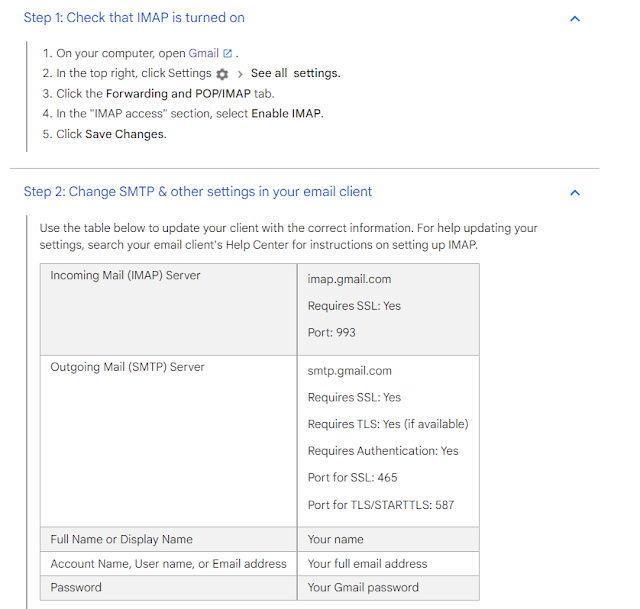
During this time period I had necessity to configure Outlook 2016 in conjunction with gmail email account

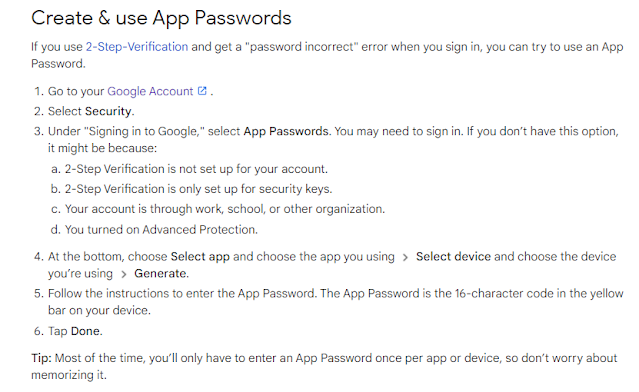
Considering that gmail email account had 2FA configuration was possible generating a specific account password related Outlook 2016.

Here they article that I followed.

Hoping that these information will be useful for someone.


https://support.google.com/accounts/answer/185833?hl=en


https://support.google.com/mail/answer/7126229?hl=en#zippy=%2Cstep-check-that-imap-is-turned-on%2Cstep-change-smtp-other-settings-in-your-email-client

Outlook 2016 - Report Phish button not working

During these weeks we faced Outlook Report Phish but to work properly when submitting suspiciouses emails.


We are sorry we couln't access Report Phish. Make sure have a network connection. If the problem continues please try again later  (Dismiss this message).

Problem was due this Internet Explorer Setting:

  • In Internet Explorer, click Tools button --> click Internet Options. 
  • Click the Security tab, and then select the Internet Sites Zone
  • Select the Enable Protected Mode check box, and then click OK
  • Restart Internet Explorer and outlook


In case icon graphics is not as expected you should proceed, on IE, like below screenshot:


To fix completely problem you need to apply all steps here indicated.

https://docs.microsoft.com/it-it/outlook/troubleshoot/user-interface/default-office-addin-icon-displayed-outlook-ribbon

Microsoft 365 - Apps activation on shared computer

About environments accessed by multiple users you can keep in mind below Microsoft article.

Be aware that shared computer activation is required for scenarios where multiple users share the same computer and the users are logging in with their own account. 

Infact, normally, users can install and activate Microsoft 365 Apps only on a limited number of devices, such as 5 PCs.

To enable Shared computer activation you should have Office 365 E3, E5 or business premium.

If you want to enable shared computer activation during the initial installation of Microsoft 365 Apps, you can instruct the Office Deployment Tool to do so during installation.

In case you already installed Miscrosoft 365 Apps there are 3 method to change activation ways (GPO, Register modify or download Microsoft Support and Recovery assistant)

more details can be found here:

https://docs.microsoft.com/en-us/deployoffice/overview-shared-computer-activation

In case you want to verify type of Microsoft 365 Apps activation are in plase you can review below article:

https://docs.microsoft.com/en-us/deployoffice/troubleshoot-shared-computer-activation#Enabled

Licensing token renewal The licensing token that is stored on the shared computer is valid only for 30 days. As the expiration date for the licensing token nears, Microsoft 365 Apps automatically attempts to renew the licensing token when the user is logged on to the computer and using Microsoft 365 Apps.

Activation limits Normally, users can install and activate Microsoft 365 Apps only on a limited number of devices, such as 5 PCs. Using Microsoft 365 Apps with shared computer activation enabled doesn't count against that limit.

Licensing token roaming Starting with Version 1704 of Microsoft 365 Apps, you can configure the licensing token to roam with the user's profile or be located on a shared folder on the network. Previously, the licensing token was always saved to a specific folder on the local computer and was associated with that specific computer. In those cases, if the user signed in to a different computer, the user would be prompted to activate Microsoft 365 Apps on that computer in order to get a new licensing token. The ability to roam the licensing token is especially helpful for non-persistent VDI scenarios.