Showing posts with label Backup. Show all posts

Veeam - Free Guide "Vmware Backup For Dummies"

Veeam give you ability to freely download Vmware Backup dummies edition.

It is simple necessary to insert, on web form, few personal/working information and download link is available.

English version

https://go.veeam.com/wp-vmware-backup-for-dummies

Italian Version

https://www.veeam.com/it/wp-vmware-backup-for-dummies.html

On blog you can review old blog posts at below link:

https://www.alessandromazzanti.com/search/label/Veeam


Veeam - How to restore all your infrastructure having only Veeam Backups

I am taking note about an interesting article that simple explain on how proceeding to restore your all infrastructure having only Veeam Backups available.

https://www.veeam.com/blog/restoring-infrastructure-from-scratch-with-veeam.html

Exchange - Recover Offline/dismounted/corrupted EDB files #HOW TO #Stellar Repair For Exchange

During previous years I worked hard on Exchange environment too.

Today I would like to mention Stellar Repair For Exchange 

(Trial version here available https://cloud.stellarinfo.com/StellarRepairforExchange.exe)

Here they are products features highlights that I would like to share on this blog article:

  1. It supports Exchange Server 2019/2016/2013/2010/2007/2003/2000, and 5.5.
  2. Exports complete EDB file directly to live Exchange and Office 365.
  3. Recover Offline/dismounted/corrupted EDB files.

  4. Exchange Database Recovery
    https://www.stellarinfo.com/support/kb/index.php/article/how-to-recover-corrupt-inaccessible-exchange-mailboxes

  5. This tool is is the combination of five Exchange tools - Exchange Recovery, Mailbox Extractor, OST to PST Converter, Exchange Backup Extractor, and Password Recovery.
    The 5-in-one Toolkit mounts and repairs the Exchange database and enables you to export mailboxes to PST, live Exchange, and Office 365.
    https://www.stellarinfo.com/email-tools/exchange-toolkit.php

  6. Selective Mailbox Recovery
    • The Exchange database recovery software provides an enhanced preview of mailboxes and its items. The selective mailbox recovery feature allows users to repair the desired mailboxes or items and save them in multiple formats. The users can select or unselect individual or multiple mailboxes and mail items as per their recovery needs.

  7. Support Archive Mailboxes Recovery
    • The Exchange recovery tool also supports archive mailbox recovery. The software can repair corrupt or damaged archive mailboxes and save them to PST, MSG, EML, RTF, HTML, or PDF format. You can also export the archive mailboxes to Office 365 or live Exchange server directly.

  8. Enhanced Mailbox Preview for Precise Recovery
  9. Exports Recovered Contacts to CSV

  10. Exports Recovered Files to Office 365
    https://www.stellarinfo.com/support/kb/index.php/article/exchange-to-office-365-migration

  11. Saves Recovered Exchange Mailboxes in Various Formats
    https://www.stellarinfo.com/support/kb/index.php/article/save-mailboxes-msg-eml-html-rtf-pdf

  12. Deleted Exchange Mailbox Recovery
    https://www.stellarinfo.com/support/kb/index.php/article/recover-deleted-exchange-mailboxes

If you want to have a quick product tour you can review below video:

How to Repair and Restore Exchange Database - Stellar Repair for Exchange || Alternative to ESEUTIL


Specifications:
FAQ

Cisco - How to backup Cisco switches using TFTP

There are several ways on how backup Cisco switches (or other vendors name) can be done.

One of them is downloading TFTP client server

https://tftp.en.uptodown.com/windows

Launching it and deciding where saving configuration files.

Be aware taking note about client IP.

Later you need to connect to switches using any SSH clients (I warmly suggest using these clients:

  1. Solar-PuTTY Connect to any server or device in your network with Solar-PuTTY for Windows. This is an interesting Putty or PuttyCM alternative.

https://www.alessandromazzanti.com/2018/11/freeware-solarwinds-software-free-tools.html

and execute below commands on switches:

Router#copy running-config tftp: 

Address or name of remote host []? 64.104.207.171

Destination filename [ce_2-confg]? backup_cfg_for_my_router

!!

1030 bytes copied in 2.489 secs (395 bytes/sec)

CE_2#

Where:

  • 64.104.207.171 must be substituted by your client ip address where tftp is under execution.

  • backup_cfg_for_my_router is backup file name that will be created on client where tftp is under execution.
You can configure automatic backups, you simple need to read all article below indicated.

[original article]

https://www.cisco.com/c/en/us/support/docs/ios-nx-os-software/ios-software-releases-122-mainline/46741-backup-config.html 


Veeam 11 - CDP (RPO= 0) and immutable storage backup against ransomware

 Veeam 11 released new features, here they are two that, imo, are very interesting:


  1. Continuous Data Protection (CDP) with RPO equal to zero:

    https://community.veeam.com/blogs-and-podcasts-57/veeam-v11-continuous-data-protection-cdp-configuration-265

    Using vSphere APIs for IO Filtering (VAIO)

  2. Immutable primary backup storage with a hardware-agnostic touch: enables you to store your short-term retention backups locally onsite for fast recovery with the protection of immutability. In addition, you can now tier those backups into an immutable object storage offering offsite, giving you additional protection against unforeseen malicious activity or accidental deletion. (protecting you against ransomware and malicious acts)

    The new hardened repositories are compliant with the SEC 17a-4(f), FINRA 4511(c), and CFTC 1.31(c)-(d) regulations. They can effectively prevent ransomware encryption or accidental/malicious deletions. The great thing about the new feature is it is based on "bring your own" Linux, so there is no vendor hardware lock-in.

    The new hardened Linux-based repositories with immutable backups will take ransomware protection to the next level for on-premises backup storage. Businesses can ensure business-critical backups are protected for the time specified for the immutable backup repository.

    https://www.veeam.com/blog/v11-immutable-backup-storage.html

    https://helpcenter.veeam.com/docs/backup/vsphere/hardened_repository.html?ver=110


Other articles:


SQL - Dbatools SQL Server PowerShell module

Here it is an interesting Tutorial about SQL Server powershell module named Dbatools used primarly about disaster recovery. (it is free dbatools.io/download)

Estensive documentation:

dbatools.io/Test-DbaLastBackup

dbatools.io/Set-DbaSpn

Some videos:

dbatools.io/youtube

https://channel9.msdn.com/Shows/Data-Exposed/How-to-Automate-Disaster-Recovery-in-SQL-Server-On-Prem

<iframe src="https://channel9.msdn.com/Shows/Data-Exposed/How-to-Automate-Disaster-Recovery-in-SQL-Server-On-Prem/player" width="960" height="540" allowFullScreen frameBorder="0" title="How to Automate Disaster Recovery in SQL Server On-Prem - Microsoft Channel 9 Video"></iframe>

Have a look to below screenshots:


Citrix - Netscaler backups approaches

In Citrix environments an important components is NetScaler.

It permit remote connection without using VPN clients.

There are several corrects VM backups ways.

Below article well explain how to:


CD Live - Ghost Alternatives - REDO Backup

During this days I was looking for a Clonezilla alternative to clone PC/Server.

If you are interested here they are relative blog articles:

http://www.alessandromazzanti.com/2012/05/tutorial-creare-immagini-di-pc-con.html

http://www.alessandromazzanti.com/2013/05/live-cd-creare-un-usb-autoavviante-per.html

Anyway I found REDO Backup CD Live that give you ability to easily clone PC/Server.

Here it is download link:

https://sourceforge.net/projects/redobackup/

Here it is procedure to make Backup Clone and Restore:

1. Download REDO Backup.
2. Download UNETBootin to burn iso to USB drive/key.
3. Boot pc to clone with precedent USB key all together connect External HardDrive for Image.
4. Select option Backup or Restore to create or restore image

[update 2020.06.04]

Here it is a specific tutorial:

https://www.ubackup.com/it/windows-10/redo-backup-windows-10.html


Azure - Microsoft Azure Data Box about offline backups

I am taking note about Azure Data Box to Azure Backup that is used for offline initial backup of large datasets using Azure Data Box

Here it is relative article that explain more verbosely concepts.

https://azure.microsoft.com/en-us/blog/azure-offline-backup-with-azure-data-box-now-in-preview/

And here it is an image on how it works:


Veeam - How to export VM from ESX 5.X to 6.X/7.X

During these months I faced following necessity:

"Backup VMs on ESXi 5.1 and export them on new ESXi 6.7 U3 managing old server fault and DR plan"

Here they are actions taken:
  • I tried to export turned off VMs, in .OVA format, and import them on new ESX unsuccesfully.


Solution applied was following.
  1. Download Veeam trial version.
  2. Enable Veeam VM Backups.
  3. Enable Veeam VM Backup and Replication from old to new host.
  4. I tested some VM replicated from old server to new one (shutting down them on old Server and starting them on new Server) from Veeam Console and test was succesfully.
Hoping that these information could be useful for someone.

APPENDIX


Below are articles that I used during entirely trouble shooting and Veeam B&R implementation.

OVA\OVF file deployment in ESXi 6.5 | Tutorial Part 3 - YouTube


Easier Fix: Failed to deploy OVF package: The task was canceled by a user.


Where the VM files are stored on VMWare ESXi? [closed]


How to enable SNMP on a VMware ESXi hypervisor


Ensure Proper SNMP Configuration


DR failover testing with Veeam console


Testing Cloud Failover Plan


Step 10. Specify Data Locations


VMware Workstation 5.0 What Files Make Up a Virtual Machine?


Replication Scenarios

Backup - Veeam Agent for Microsoft Windows/Linux 3.0

During previously years I already wrote some blogs posts about Veeam Agent for Windows/Linux.

Veeam - Veeam Endpoint Backup Free - Free version released
Backup - Veeam Backup for free v.2.0 for Client/Laptop

It is a very interesting backup software that permit to schedule bare metal backups for physical clients and Servers.
Backups can be done to external Hard Drives, NAS, shares, cloud or to Veeam B&R repositories.

There are 3 versions (Windows Product Edition Comparison - Linux Product Edition Comparison):

  1. Free. (no VSS, limitations about scheduling &Targets repositories, retention, Veeam B&R integration and technical support)
  2. Workstation. (no VSS, limitations about scheduling, retention, B&R integration)
  3. Server: that permit centralized Endpoint backup managements from Veeam B&R console (excellent feature)


Here they are some applicative aspects with relative hyperlinks:

  • Backup & Restore features.
  • Bare-metal restore & Bootable recovery media creation.
  • Backups with passwords.
  • Additional features:
    • Password Reset about built-in Administrator account.
    • Startup repair.
    • Memory diagnostics.
Here it is Veeam Agent For Microsoft Windows Datasheet for which I highlight some interesting features:


TIPS - rotated drives with Veeam Agent Windows - Free mode

Latter part of this article is dedicated to feature that is available with free edition:

Backup on rotated drives is performed in the following way:

1. Veeam Agent for Microsoft Windows creates a backup chain on an external drive that you use as a backup target. The backup chain consists of the first full backup and a set of subsequent incremental backups.

2. When you swap drives and attach a new external drive, Veeam Agent for Microsoft Windows creates a separate backup chain on the new drive.


3. After you swap drives again, Veeam Agent for Microsoft Windows detects if there is a backup chain on the currently attached drive. If the backup chain exists, Veeam Agent for Microsoft Windows continues the existing chain: it creates a new incremental backup file and adds it to the existing backup files."

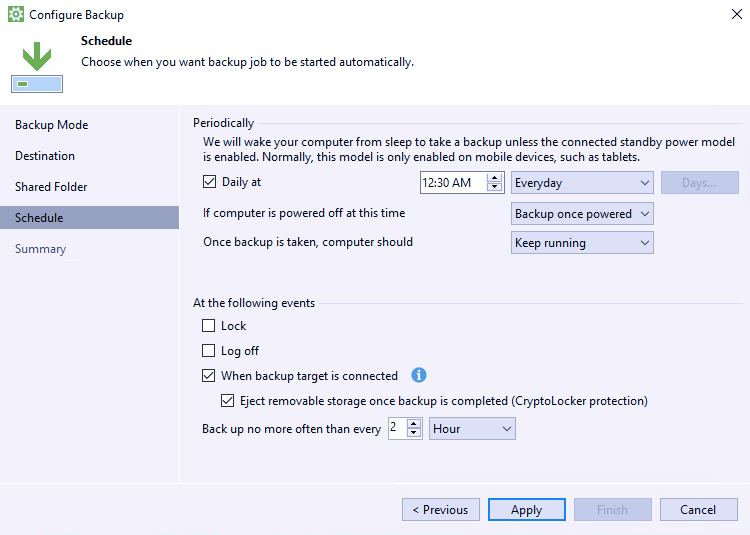
Here it is Veeam article and few screenshots for configuration:


[APPENDIX]

Here it is an interesting Veeam Article that explains differences between Synthetic vs Full backup

https://helpcenter.veeam.com/archive/backup/95/vsphere/synthetic_full_backup.html

"In free mode you can create only a single scheduling but you can use rotated drives as a target location for backups. This scenario can be helpful if you want to store backups on several external hard drives (for example, USB or FireWire) and plan to swap these drives between different locations regularly.

Veeam - Direct SAN Access

I would like to mention this Veeam Article that was useful in the past to configure Direct SAN Access feature to enhance Backup Veeam Speed and workload.

Direct SAN Access

The Direct SAN access transport mode is recommended for VMs whose disks are located on shared VMFS SAN LUNs that are connected to ESX(i) hosts over FC, FCoE, iSCSI, and on shared SAS storage.

In the Direct SAN access transport mode, Veeam Backup & Replication leverages VMware VADP to transport VM data directly from and to FC and iSCSI storage over the SAN. VM data travels over the SAN, bypassing ESX(i) hosts and the LAN. The Direct SAN access transport method provides the fastest data transfer speed and produces no load on the production network.

The Direct SAN access transport mode can be used for all operations where the backup proxy is engaged:

Backup
Replication
VM copy
Quick migration
Full VM restore
VM disk restore
Replica failback

Vackup - Veeam Alternative Vembu BDR Suite

Today I would like to mention this Veeam Backup Alternative.

https://www.vembu.com/

I did not have time to try it yet but here some charactheristic that make it interesting:


  1. Backups could be saved on-site, off-site and on cloud.
  2. Item Level Backup for Exchange, Sharepoint, SQL, My SQL, Office 365 available.
  3. Two licensing types:
    1. Unlimited functionalities only for 3 VMs.
    2. Unlimited VMs but functionalities limited.
  4. 30 days trial full feature download possible.
  5. If you are interested to view full compare between license type you could review this .pdf:
    https://www.vembu.com/pdf/datasheet/vembu-bdr-suite-free-vs-paid-edition.pdf
  6. HyperV (2008 R2 up to 2016),  Vmware (4.x up to 6.x) , workstation and physical server are supported.
  7. Full and granular restore supported.
  8. CRC, encryption (backup) and compression are supported.
  9. No agent software is installed on VMs.
  10. Storage pools aggregations are supported like on Veeam.
  11. Direct SAN feature permits backup tool to communicate directly to SAN (exposing with iScsi) without necessity to pass through to Vmware/HyperV hypervisors.
  12. Cross Platform Migration tool support (v2v) between different hyper-visor.
  13. VSS - Application-aware image backup compatibility.
  14. Log Truncation.
  15. Backup data could be downloaded from user in different file formats (vmdk, vhdx, image ....)
  16. Backup encryption (AES 256 bit)
  17. About exchange (2003, 2007, 2010, 2013 and 2016) Vembu Explorer for Microsoft Exchange Instantly restores Exchange user mailboxes, emails, contacts and etc., from backed up VMware VMs without restoring entire Exchange server.
  18. Vembu Explorer for Microsoft Active Directory: Instantly restores Active Directory objects and GPOs and etc., without restoring entire MS Active Directory VM.Supports Active Directory Server 2008 R2 STD, 2012 DC, 2012 R2 DC.
  19. Vembu Explorer for Microsoft SQL Server: Instantly restores SQL database and tables without restoring entire SQL VM. Supports MS SQL Server 2005, 2008, 2008 R2, 2012, 2014, 2016.
  20. Vembu Explorer for Microsoft Sharepoint: Instantly restores SharePoint site collections, documents and etc. without restoring entire SharePoint VM. Supports Microsoft SharePoint Portal Server 2003,2007,2010,2013.
  21. Bare-metal Recorery it is supported restoring to same hardware or new RAW hardware using Vembu Recovery CD.
    Supported O.S.: 
    (2016, 2012 R2, 2012, 2008 R2, 2008,2003 R2 SP2, 2003 SP2, Windows 10 , Windows 8, Windows 7,Windows Vista,  Windows XP SP2)
Here they are useful documentation to aim to view all features/capabilities:


Indeed about Veeam Backup tool you could review this link with all related blog articles:

http://www.alessandromazzanti.com/search/label/Veeam


Disaster Recovery - Ex-Admin Deletes All Customer Data and Wipes Servers of Dutch Hosting Provider

Today I would like to mention this incredible history about an ex-Administrator proceeded to delete and wipe all customers servers.

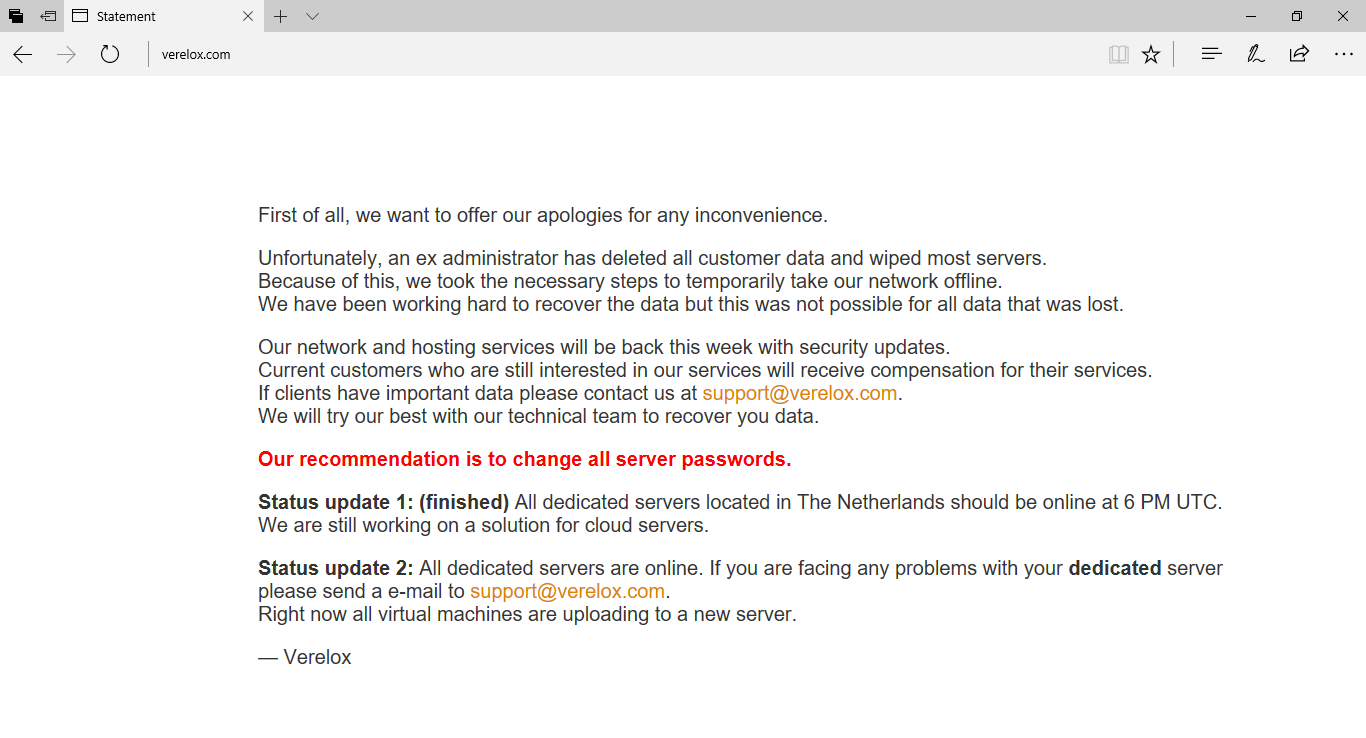
You can review following image that well explain what happened:

Verelox, a provider of dedicated KVM and VPS servers based in The Hague, Netherlands, suffered a catastrophic outage after a former administrator deleted all customer data and wiped most of the company's servers.


more details can be found here:

https://www.bleepingcomputer.com/news/security/ex-admin-deletes-all-customer-data-and-wipes-servers-of-dutch-hosting-provider/

SCOM - Backup - Veeam Management Pack for System Center v8

Today I would like to mention this Veeam Management Pack for System Center v8 that provides complete app-to-metal visibility for both your virtual and physical environments, creating the “big-picture” view of your entire virtualized infrastructure – and all from within the native System Center Management console.
This kind of monitor will include insights into Veeam Backup & Replication services.

https://www.veeam.com/system-center-management-pack-vmware-hyperv.html

What’s New in v8 Product Overview Editions Comparison Microsoft Solution Brief Veeam MP Differentiators


Veeam - How to Use the Veeam Backup Validator

Veeam offer a simple command line tool to verify backup consistencies.

Here it is relative Veeam article:

How to Use the Veeam Backup Validator

From precedent article here they are relative switches and examples:


Parameters:

    /?       - Displays help
    /backup  - Specifies backup name or backup ID
    /vmname  - Specifies one or more VM names (empty value for all VMs)
    /point   - Specifies restore point ID
    /date    - Specifies restore point date
    /time    - Specifies restore point time
    /silence - Enables silence output mode
    /skip    - Skips specified VMs
    /report  - Generates HTML report at the specified path
    /file    - Specifies one or more backup files (VBM, VBK, VIB, VLB)
    /format  - Specified report format (HTML, XML)

Examples:   
  • Validate the VMs named "W2008", "W2008R2_DC" and "W2K" in the most recent restore point for the backup "Backup Job 1_imported".

    Veeam.Backup.Validator.exe /backup:"Backup Job 1_imported" /vmname:W2008 /vmname:W2008R2_DC /vmname:W2K

     
  • Validate all virtual machines in the last restore point with ID 3942788C-B309-4FA4-A111-A4C87B3EC63D.

    Veeam.Backup.Validator.exe /backup:3942788C-B309-4FA4-A111-A4C87B3EC63D

     
  • Validate a VM with the name "Windows 8" in the restore point created on December 5 2012 for a job named “Backup Job 1".

    Veeam.Backup.Validator.exe /backup:"Backup Job 1" /vmname:"Windows 8" /date:05.12.2012

     
  • Validate a VM with the name "VM1" in the restore point created around 16:00 on December 5 2012 for a job named "Backup Job 2".

            Veeam.Backup.Validator.exe /backup:"Backup Job 2" /vmname:"VM1" /date:"05.12.2012" /time "16:00"
 

  • Validate a VM with the name "VM2" contained in the VBM file located at C:\Backup\VM2_Backup.vbm

    Veeam.Backup.Validator.exe /file:"C:\Backup\VM2_Backup.vbm" /vmname:"VM2"

     
  • Validate all VMs in VBK-file (backup file).

    Veeam.Backup.Validator.exe /file:"C:\Backup\VM2_Backup.vbk"

     
  • Validate a VM with the name "VM3" in the most recent restore point of "Backup Job 1" and create an HTML-report.

    Veeam.Backup.Validator.exe /backup:"Backup Job 1" /vmname:"VM3" /report:"D:\Reports\Backup_Job_1_Validate_30_09_2014.html"

     
  • Validate a VM with the name "VM3" in the most recent restore point of "Backup Job 1" and create XML-report.

    Veeam.Backup.Validator.exe /backup:"Backup Job 1" /vmname:"VM3" /report:"D:\Reports\Backup_Job_1_Validate_30_09_2014.xml" /format:xml

Monitor - Veeam One free edition 9.5

In blog monitor section you can find several monitor tools/way.

http://www.alessandromazzanti.com/search/label/Monitoring

Other than that today I would like highlight again Veeam One free edition tool (obviously paid version is better but just to start) useful to monitor entirely Vmware/HyperV infrastructure is really a good beginning.

https://www.veeam.com/virtual-server-management-one-free.html

Product Overview Veeam ONE: Free vs Paid What's New in 9.5 (ONE) 
DOWNLOAD FREE
Free forever – unlimited VMs


Following you can review some screen shots, consider that this product has several features, most important and straights are real time dashboard, statistician and report capability (for historian purpose and view top VM/hosts/ram/disk massive usage), real time alerting..
it can monitor Veeam Backup&Replication infrastructure with single backup job monitoring in conjunction with any other related issue.


Gain Your business actual status overview:


Building custom reports

Backup - Veeam Direct Restore to Microsoft Azure

Here it is interesting Veeam article:

https://www.veeam.com/cloud-direct-restore-azure.html


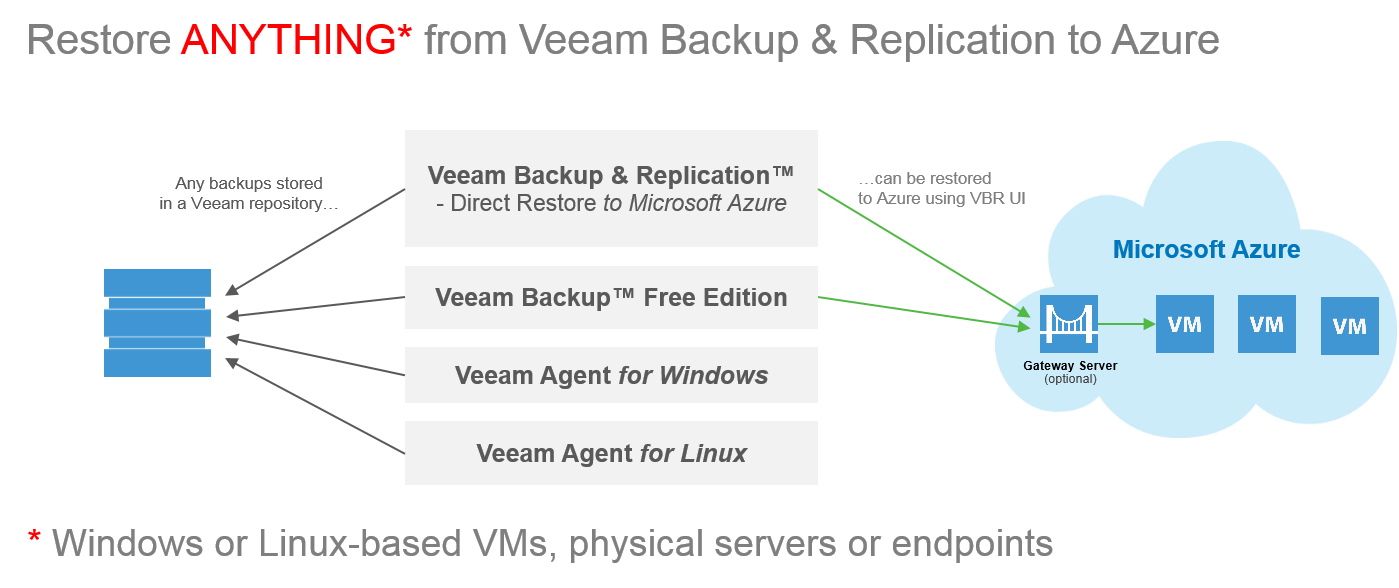
Direct Restore to Microsoft Azure, included in NEW Veeam Availability Suite 9.5, delivers cloud restore for Veeam backups to Microsoft Azure cloud. Veeam’s Direct Restore to Microsoft Azure enables admins to restore or migrate physical (P2V) or virtual (V2V) workloads to Azure 

The Azure Virtual Machine Agent is installed automatically (on Windows-based VMs only), and sequential, parallel disk and VM-restore options are available.

Now se can easily execute planned workload migrations of VMware and Hyper-V VMs or remaining legacy physical servers to the cloud.

Azure can be very used as a test environment. Since it is created from your backups, it mirrors your production environment, and you can safely test patches and critical updates before rolling them out to production.

REMARK: Veeam recommends installation of a gateway server (optional), running on an Azure VM, for improved performance.

Meanwhile I would like to highlight this Veeam product too:

Veeam FastSCP for Microsoft Azure

Veeam FastSCP™ for Microsoft Azure delivers easy-to-use, reliable and fast file copy for Azure VMs. This free standalone utility provides secure file copy over HTTPS with built-in encryption (no VPN needed), scheduled file copy jobs and a wizard-driven UI to transfer files in just a few clicks — with no scripting knowledge required.

Backup - Veeam Backup for free v.2.0 for Client/Laptop

Veeam - 57 restore scenarioVeeam Agent for  Windows easily back up  PC to an external hard drive, NAS (network-attached storage) share or a Veeam Backup & Replicatio repository, here they are more details:

https://www.veeam.com/windows-endpoint-server-backup-free.html

Product Overview Free Product Overview Editions Comparison User Guide Veeam Agent Configurator | FAQ


Download Link

Windows servers and workstations can be saved in this way too:


Major v.2 features:

  • Direct Restore to Microsoft Azure: Restore or migrate on-premises, Windows-based physical server and endpoint backups directly into Microsoft Azure
  • Synthetic full backups: Eliminate the need for periodic full backups by creating forever-incremental backups that save time and storage
  • Windows 10 & Windows 2016 Server full support
  • CryptoLocker protection for USB Storage: Protect USB-based storage targets from potential CryptoLocker threats by automatically ejecting them after a successful job run
  • Recovery options: Bare-metal restore: Restore your entire system to the same or different hardware
  • Volume-level restore: Restore a failed hard drive or corrupted partition.
  • File-level restore: Restore individual files from ANY backup type few minutes.


Bootable recovery media:


  • Reset password: Reset the password for the built-in administrator account.
  • Startup repair: Fix system problems that might prevent Windows from starting (e.g., missing or damaged system files, corrupted boot sector, etc.) Learn more
  • Memory diagnostics: Check the system memory of your computer and detect potential problems after the next system reboot. Learn more
  • Command prompt: Start the Microsoft Windows command prompt (cmd.exe)


Integration with Veeam Backup & Replication

  • If you’re using Veeam Backup & Replication in your VMware vSphere or Microsoft Hyper-V virtual environment, you’ll be able to take full advantage of Veeam backup repositories as target locations for your Veeam Agent for Microsoft Windows jobs.
  • In this way you could get endpoint backups off site to disk, tape or even the cloud with Backup Copy and Backup to Tape jobs


Here they are more Veeam blog articles:

Backup - Veeam free e-book: Conversational Ransomware Defense and Survival

Veeam - Incremental vs. differential methods compare

Veeam Explorer for Active Directory and Group policy Object Restore procedure

Microsoft - Azure and Veeam Connect

Veeam - Backing up Domain Controller: Best practices for AD protection (Part 1,2,3 and 4)

Monitoring - VirtualWin with Autoswitcher plugin

Server - how to expose QNAP iscsi storage to Vmware based system

[update 2019.05.13]

Here they are updated links to all QNAP Storage products:

https://www.qnap.com/it-it/product/