Showing posts with label GPO. Show all posts

Citrix #how to push Citrix Workspace app for windows through GPO

Citrix Workspace app has possibility to be pushed through GPO, using proper scripts and ADMX/ADML templates for Group Policy Editor

All details can be found at below link:

https://www.citrix.com/downloads/workspace-app/legacy-workspace-app-for-windows-ltsr/workspace-app-for-windows-2402-LTSR-cu2.html

Consider that PDQ product is not able to push software after reboot/shutdown so, this solution, permit to override this software limit

https://documentation.pdq.com/pdqdeploy/13.0.3.0/index.html?logoff-step.htm

https://www.alessandromazzanti.com/search?q=pdq

Be aware that latter VDI Teams version have to utilize this Citrix WorkSpace setting enabled

So in cmd you need to add this value MTOPBootStrapperInstaller (to properly deploy teams plugin)

set CommandLineOptions=/Silent ALLOWADDSTORE=N /includeSSON /AutoUpdateCheck=Disabled EnableCEIP=false ADDLOCAL=ReceiverInside,ICA_Client,SSON,AM,SELFSERVICE,USB,DesktopViewer,Flash,Vd3d,Webhelper,BrowserEngine,WorkspaceHub,MTOPBootStrapperInstaller

start /wait %DeployDirectory%\CitrixWorkspaceFullInstaller.exe DONOTSTARTCC=1 %CommandLineOptions%

Server - MMC GPO Security Options errors - MMC cannot initialize the snap-in

Using MMC snapin, on windows server (in my case on 2016 version), basically managing GPOs, you might face below errors.

I get the error message stated in the subject line whenever I try to open Computer Configuration >> Windows Settings >> Security Settings >> Local Policies >> Security Options >> from GPO.


I found three alternatives to manage this error:

Option 1

  1. This was broken with the September 8, 2020—KB4577015 update. currently the only solution is to uninstall it.

    https://community.spiceworks.com/topic/2291581-windows-2016-mmc-snap-in-error

  2. Then install KB4571694, reboot and try again or patch KB4580346 (I did not investigate at 100%)

    https://community.spiceworks.com/topic/2291581-windows-2016-mmc-snap-in-error

    https://learn.microsoft.com/en-us/answers/questions/124913/server-2016-mmc-has-detected-an-error-in-a-snap-in
Option 2
  1. Export REG key:

    reg export "HKEY_LOCAL_MACHINE\SOFTWARE\Microsoft\Windows NT\CurrentVersion\SecEdit\Reg Values\MACHINE/Software/Microsoft/Windows/CurrentVersion/Policies/System/DontDisplayLockedUserId" C:\Temp\DontDisplayLockedUserId.reg

  2. Deleting REG key

    reg delete "HKEY_LOCAL_MACHINE\SOFTWARE\Microsoft\Windows NT\CurrentVersion\SecEdit\Reg Values\MACHINE/Software/Microsoft/Windows/CurrentVersion/Policies/System/DontDisplayLockedUserId" /f

  3. Change GPO 

  4. Reimport Register key
    Double clicking here
    C:\Temp\DontDisplayLockedUserId.reg
  5. Original article: 

    https://learn.microsoft.com/en-us/answers/questions/124913/server-2016-mmc-has-detected-an-error-in-a-snap-in
Option 3

  1. On a full patched server or PC install RSAT and solve problem in this way
    https://www.alessandromazzanti.com/2019/05/windows-10-how-to-install-rsat-on.html

  2. Server - How to Execute RSAT snapins with different users without server/client logon necessity
    https://www.alessandromazzanti.com/2017/10/server-how-to-execute-rsat-snapins-with.html

REFERENCES

Windows 10 - Windows 10 logs

 STEP 1:

  1. Starting with Windows 10 build 9926, Windows Update logs are no longer saved to "%windir%\Windowsupdate.log".
  2. Windows Update client now uses Event Tracing for Windows (ETW) to generate diagnostic logs saved as .etl files in the "%windir%\Logs\WindowsUpdate" folder. This method improves performance and reduces disk space usage. However, the logs are not immediately readable as written.
  3. After Windows 10 build 9926 logs are here located but no longer readable.
  4. Click Windows key + R to open Run and type Evntvwr.msc -->  Applications and Service Logs\Microsoft\Windows\WindowsUpdateClient


STEP 2:

  1. Click Windows key + R to open Run and excute PowerShell with administrative rights and press Enter.
  2. Enter Get-WindowsUpdateLog into the elevated PowerShell, and press Enter.
  3. When finished running, this will create a WindowsUpdate.log file on your desktop. It will take a moment to finish.

STEP 3:

  1. Click Windows key + R to open Run and type cmd with administrative rights and press Enter.
  2. Type regedit.exe and press Enter.
  3. Browse to HKEY_LOCAL_MACHINE\SOFTWARE\Policies\Microsoft\Windows\WindowsUpdate\AU


  4. Change the key UseWUServer from 1 to 0
  5. Inside cmd with administrative rights execute below commands:
    1. net stop wuauserv
    2. net start wuauserv
  6. Open windows update:
    1. Run updates and select the option to get updates online.

STEP 4:

  1. Click Windows key + R to open Run and type cmd with administrative rights and press Enter.
  2. Type rsop.msc and press Enter.
  3. Check domain policies applied and verify Windows update section as well.


STEP 5:

Here they are some screenshots on how we could proceed, working on GPOs, changing bandwitch usage


Windows 10 - Quick assist a free Teamviewer alternative

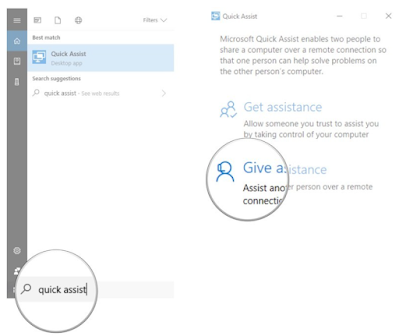
There is an interesting built in feature inside Windows 10 that permit to receive and give remote assistance (inside and externally your organization).

This feature is named "Quick Assist" and is easily usable finding it in yours Windows 10 device (secondly you need to authenticate using your Microsoft account):


Relative usage is well explained in below articles:

https://www.thewindowsclub.com/quick-assist-windows-10

https://www.windowscentral.com/how-use-windows-10-quick-assist

In present article I would like to share how to give remote assistance and execute applications, on remote client, that needs administrative rights.

Key point is necessity to create a proper GPO (or change client gpedit.msc settings) as below.

What I suggest is to make some changes in your GPO on how the UAC presents itself but does not turn it off.

Computer Configuration/Windows Settings/Security Settings//Local Policies/Security Options

Policy

Setting

User Account Control: Allow UIAccess applications to prompt for elevation without using the secure desktop

Enabled

User Account Control: Switch to the secure desktop when prompting for elevation

Disabled

After this change you will be able to execute administrative software on remote computers.


[original article]

https://answers.microsoft.com/en-us/msteams/forum/all/does-ms-teams-work-as-remote-support-tool/6eccdadc-9a5a-48cd-9ad0-080478b5ba6b

[update 2022.03.06]

https://docs.microsoft.com/en-us/windows/client-management/quick-assist


[update 2022.07.27]

RustDesk Teamviewer Alternative

https://www.html.it/magazine/rustdesk-alternativa-open-source-a-teamviewer/

SCCM - How to disable local Administrator Account

If you need to disable local Administrator account, change/set password or create new local Admin/user you can review previously article about GPO approach.

GPO - How to create local Administrator account using Group policies
http://www.alessandromazzanti.com/2017/04/gpo-how-to-create-local-administrator.html

Otherwise you can do that using SCCM.

Summarizing you would need to create a simple CI checking on specific collection verifyng thereshold relatively devices that have local Administrator account enabled, apply remediation (account disabling) and finally have available reports/alerts.

Here it is more verbosely article:

https://4sysops.com/archives/disable-the-local-administrator-account-with-sccm/

GPO - Wifi pcs and policy applying problems

Company laptop that connect to domain via WiFi could not apply correctly policies due to WiFi connection unavailability.

There are two alternatives to solve issue customizing properly GPO:

You can do this with Group Policy, using the Always wait for the network at computer startup and logon policy setting.  

https://technet.microsoft.com/en-us/library/gg486839.aspx

gplogon.jpg

Alternatively adding a delay during policy appling this policy:

Policy Location: Computer Configuration > Policies > Admin Templates > System > Group Policy
Setting Name: Startup policy processing wait time
Registry Key: HKLM\Software\Policies\Microsoft\Windows\System!GpNetworkStartTimeoutPolicyValue

https://support.microsoft.com/it-it/help/2421599/windows-7-clients-intermittently-fail-to-apply-group-policy-at-startup

Windows 10 - How to delay Quality Update and Features Update patch installation

Here it is interesting article that well explain how to delay windows 10 Quality Update and Features Update patch installationpatch installation:

https://www.achab.it//achab.cfm/it/blog/achablog/windows-10-creator-update-no-grazie

GPO - How to create local Administrator account using Group policies

If you want that all Pcs/server under same OU will have automatically created a new local Administrator account with a specified password you can do that creating a precise GPO.

I already tested procedure in the past and it worked fine (with centralized management):


  1. Launch Group Policy Management console --> "create a GPO...." --> Group Policy Editor
  2. Navigate to Computer Configuration\Preferences\Control Panel Settings\Local Users and Groups 
  3. right clieck in blank area and select New --> Local User
  4. Action --> update
  5. User name --> testadmuser
  6. You can setting up other settings.
  7. Put testadmuser password
  8. you can repeat precedent procedure about Administrator Account (built-in), 
If you like you can review this article too

http://www.dannyeckes.com/create-local-admin-group-policy-gpo/

I would like to highlight this article that clearly explain how to decrypt stored AD password for local administrator account using precedently GPO and how to enforce security with Microsoft Premier support.

https://blogs.technet.microsoft.com/askpfeplat/2014/05/18/how-to-automate-changing-the-local-administrator-password/

[update 2024.05.24]
in case you need to add an AD user Administrators members group you need to follow these steps

1. Launch Group Policy Management console --> "create a GPO...." --> Group Policy Editor
2. Navigate to Computer Configuration\Preferences\Control Panel Settings\Local Users and Groups 
3. right clieck in blank area and select New --> Local Group
4. Action --> update
5. Group name --> Administrators (built-in)
6. You can setting up other settings.
7. Members, Add --> Search for the Service Account in AD 
8. Action--> Add to this group

Windows 10 - How to manage updates

Today I would like to highlith these Microsoft articles that explain how to manage Windows 10 updates as a service.

Unfortunately they are in italian language but could be easily translated on line to any preferred language.

https://technet.microsoft.com/it-it/itpro/windows/manage/waas-update-windows-10?wt.mc_id=AID521892_EML_4912522

ArgomentoDescrizione
Guida rapida a Windows as a ServiceFornisce un breve riepilogo dei punti principali relativi al nuovo modello di manutenzione per Windows 10.
Panoramica di Windows as a ServiceSpiega le differenze in termini di compilazione, distribuzione e manutenzione di Windows 10, presenta gli aggiornamenti delle funzionalità, gli aggiornamenti qualitativi e i diversi rami di manutenzione e confronta gli strumenti di manutenzione.
Preparare la strategia di manutenzione per gli aggiornamenti di Windows 10Illustra le decisioni da prendere nella strategia di manutenzione.
Creare circuiti di distribuzione per gli aggiornamenti di Windows 10Spiega come usare i rami di manutenzione e i rinvii degli aggiornamenti per gestire gli aggiornamenti di Windows 10.
Assegnare i dispositivi ai rami di manutenzione per gli aggiornamenti di Windows 10Spiega come assegnare dispositivi al ramo CB (Current Branch) o CBB (Branch for Business) per gli aggiornamenti qualitativi e delle funzionalità e come registrare dispositivi in Windows Insider.
Ottimizzare il recapito degli aggiornamenti di Windows 10Illustra i vantaggi dell'uso di Ottimizzazione recapito o BranchCache per la distribuzione degli aggiornamenti.
Gestire gli aggiornamenti per Windows 10 Mobile Enterprise e Windows 10 IoT MobileDescrive gli aggiornamenti per Windows 10 Mobile Enterprise e Windows 10 IoT Mobile.
Gestire gli aggiornamenti con Windows Update for BusinessSpiega come usare Windows Update for Business per gestire quando i dispositivi ricevono gli aggiornamenti direttamente da Windows Update. Include procedure dettagliate per configurare Windows Update for Business tramite Criteri di gruppo e Microsoft Intune.
Gestire gli aggiornamenti di Windows 10 con Windows Server Update Services (WSUS)Spiega come usare WSUS per gestire gli aggiornamenti di Windows 10.
Gestire gli aggiornamenti di Windows 10 con System Center Configuration ManagerSpiega come usare Configuration Manager per gestire gli aggiornamenti di Windows 10.
Gestire i riavvii dei dispositivi dopo gli aggiornamentiSpiega come usare Criteri di gruppo per gestire i riavvii dei dispositivi.

Windows 200x/201x - How to monitor GPO application with some tools

GPO are applied to computer and user side.

To verify its application here they are some simple tools:


  1. Resultant Set of Policy (rsop.msc)  it is graphical tools that show which policies are applied and which are working (consider that there are some expections to some policies not displayed with this tool)
  2. GPResult.exeit is a command line tool that create .xml .html report.
  3. Group Policy Inventory (GPInventory.exe) Group Policy Inventory (GPInventory.exe) allows administrators to collect Group Policy and other information from any number of computers in their network by running multiple Resultant Set of User Policy (RSOP) or Windows Management Instrumentation (WMI) queries. The query results can be exported to either an XML or a text file, and can be analyzed in Excel.Typical usage scenariosRSOP Queries:
    • Do a software inventory for users and computers in a domain or OU
    • See which applications are installed on computers in the domain
    • Track the rollout of new GPOs on a domain
    • Find computers that have not downloaded and applied new GPOs
    WMI Queries:
    • Do a complete hardware inventory (processor, memory, hard disk space, etc) for all computers in the domain
    • Scan all computers to see if a particular hotfix is applied
    • See the amount of disk space that is available on computers
    • Test a WMI filter before implementing it in the domain
  4. Using powershell you can utilize this command: Get-GPResultantSetOfPolicy, more details:
    https://technet.microsoft.com/en-us/library/ee461048.aspx
    https://blogs.technet.microsoft.com/heyscriptingguy/2013/02/08/use-powershell-to-find-group-policy-rsop-data/
  5. Using Wmi and .vbscript :
    https://blogs.msdn.microsoft.com/dsadsi/2009/09/18/how-to-retrieve-currently-applied-gpos-on-your-local-machine-using-wmi-via-windows-scripting-host-wsh/

If you like you can go deeper using these latter articles:

Windows 10 - Updating GPO administrative templates

If you want to manage Windows 10 systems through Group Policy, you need to download .admx using this article:


How to create and manage the Central Store for Group Policy Administrative Templates in Windows
https://support.microsoft.com/en-us/kb/3087759

Precedent update could create and error and this article would help to solve:

KB3077013 “‘Microsoft.Policies.Sensors.WindowsLocationProvider’ is already defined” error when you edit a policy in Windows

https://support.microsoft.com/en-us/kb/3077013

If you like you can review this Italian article too.

http://www.devadmin.it/2016/09/19/windows-10-aggiornamento-group-policy-administrative-templates/?wt.mc_id=AID520875_EML_4791255

GPO - How do I disable balloon tips in the notification area with Windows 10/8/7/Vista/XP

If you want to disable balloon tips in the notification area you car reuse this old Microsoft article.

https://support.microsoft.com/en-us/kb/307729

With Windows 10 there are some differences but idea is the same.

You can use these settings to create a suitable GPO:


To disable balloon tips in the notification area, follow these steps:
  1. Click Start, click Run, type regedit, and then press ENTER.
  2. Locate the following subkey:
    HKEY_CURRENT_USER\Software\Microsoft\Windows\CurrentVersion\Explorer\Advanced
  3. Right-click the right side pane, create a new DWORD value, and then name it EnableBalloonTips.
  4. Double-click EnableBalloonTips, and then give it a value of 0.
  5. Close Registry Editor.
  6. Log off Windows, and then log back on.


Server - Google Chrome GPO creation under Microsoft Domain

Google chrome client settings can be centrally managed with Domain Group policies.

Here they are steps to be done:


  1. Download .admx templates:
    http://dl.google.com/dl/edgedl/chrome/policy/policy_templates.zip
  2. You should start creating new GPO as usual on Microsoft domain.
  3. After that you can follow these screenshots to have a major ideas about core procedure and enhancement gained with .admx templates add:


About Firefox you can follow these blogs articles:


[update 2022.08.19]

Here it is procedure updated to meet Edge step by step actions that you should take place