To see if your mail server did not fall in a blacklist when sending an email you can check the following website:
http://www.mxtoolbox.com/blacklists.aspx
Other sites chef year the same job:
http://www.dnsbl.info/dnsbl-database-check.php
http://www.anti-abuse.org/multi-rbl-check/
http://multirbl.valli.org/lookup/
To verify that our IP is not generating strange traffics you can use this Cisco tool:
http://www.senderbase.org/
To ensure that our domain has the MX record and other DNS parameters correct, you can use:
http://www.intodns.com/
http://hostadvice.com/tools/whois/
Once you excluded that our server is entered in a blacklist, which does not generate abnormal traffic and the DNS registration is correct you should verify the functionality trying to send email externally:
You can use the following email servers external to check everything:
http://www.mxtoolbox.com/diagnostic.aspx
http://centralops.net/co/EmailDossier.aspx
http://multirbl.valli.org/email-test/
You can utilize this tool:
http://www.mxtoolbox.com/
http://centralops.net/co/NsLookup.aspx
Another control that can be done is that Internet servers are operating properly and that it is not an isolated is that prevents communication between mail servers.
To do this you can use one of the following links:
http://www.internetpulse.com/
http://www.internettrafficreport.com/
Here you have a website to quickly send emails:
http://davidp.ordinarylight.com/qm/
[Italian Article link: http://www.alessandromazzanti.com/2012/03/server-verificare-il-funzionamento-di.html ]
Vmware - Convert Thin disk to full size how to
Inflate Thin Virtual Disks


Vmware - Vmware Converter utility and consideration
VMware®
vCenter Converter Standalone is a product to convert virtual and physical machines to VMware
virtual machines.
This tool give you the ability to convert remote client/Server too and executing post migration task (like disk resize, network changes and so on )
here they are official documentation and Vmware Converter download link:
https://my.vmware.com/web/vmware/evalcenter?p=converter&cmd=displayKC&externalId=1004588
VMware vCenter Converter Standalone User's Guide
https://www.vmware.com/go/converter-user-guide
VMware vCenter Converter Standalone Documentation
https://www.vmware.com/support/pubs/converter_pubs.html
With this article I wouuld like to focalize on some il limitation and best practices that are well explained here:
http://kb.vmware.com/selfservice/microsites/search.do?language=en_US&cmd=displayKC&externalId=1004588
This tool give you the ability to convert remote client/Server too and executing post migration task (like disk resize, network changes and so on )
here they are official documentation and Vmware Converter download link:
https://my.vmware.com/web/vmware/evalcenter?p=converter&cmd=displayKC&externalId=1004588
VMware vCenter Converter Standalone User's Guide
https://www.vmware.com/go/converter-user-guide
VMware vCenter Converter Standalone Documentation
https://www.vmware.com/support/pubs/converter_pubs.html
With this article I wouuld like to focalize on some il limitation and best practices that are well explained here:
http://kb.vmware.com/selfservice/microsites/search.do?language=en_US&cmd=displayKC&externalId=1004588
- If the source is a domain controller, special considerations must be made. VMware does not recommend virtualizing an active domain controller with Converter. For more information, see Virtualizing existing domain controllers (1006996).
- If the source is Microsoft Exchange, SQL, or other database server, VMware recommends that the application (Microsoft Exchange/SQL) and database services be shut down prior to conversion. This minimizes any chance of corrupted database tables or stale data in the destination virtual machine.
- Disable the real-time antivirus scanning during the conversion.
- Read the VMware Converter Release Notes. The release notes review important limitations or issues that may affect the conversion process.
- Verify that you are using or have downloaded the latest version of VMware Converter. ........
... - If the NIC on the source machine is compatible with TOE (TCP Offload Engine), you need to disable it by running this command in a command prompt on the source machine:
netsh int tcp set global chimney=disabled
For additional information, see the Microsoft Knowledge Base article 951037.
Note: The preceding link was correct as of November 21, 2014. If you find the link is broken, provide feedback and a VMware employee will update the link.
Vmware - How to extend .vmdk Drive on ESX(i)
If you need to extend .vmdk drive here are quickly step to follow (specific case ESX(i) 5.x and windows 2008/12)
1. Shutdown VM
2. Edit Drive settings and put new size:
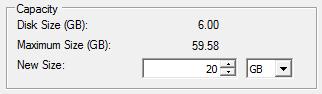
3. Start VM
4. Go to Start --> Run and type "diskmgmt.msc" and extend drive size


1. Shutdown VM
2. Edit Drive settings and put new size:
3. Start VM
4. Go to Start --> Run and type "diskmgmt.msc" and extend drive size


Tips - How to get remote pc/server/device Mac Address
If you need to find remote mac address you can proceed in this way:
- If you are on a Windows machine, open a command box (Start...Run...cmd), ping the target machine so you have made contact with it, and then issue the command arp -a to view your local ARP table, which will list IP addresses and their corresponding MAC addresses.
arp -a - getmac /s remote_computer /u username /p password
Syntax Example:
getmac /s remote_computer /u username /p password - nbtstat -a remote_IP
Tutorial - How to backup Print server Roles on 2008 R2/2012 and restore to a new Server
If you need to backup Print Server Role on 2008 R2/2012 and import to a new one here they are steps to follow:
1. On new server install print server role
2. On new server or old server launch print server snapin and backup it and restore like following screenshots.
3. For more details you can read this articles:
http://blogs.technet.com/b/canitpro/archive/2013/06/17/step-by-step-install-use-and-remove-windows-server-migration-tools.aspx
https://technet.microsoft.com/en-us/library/jj134150.aspx
http://www.urtech.ca/2013/06/solved-how-to-migrate-printers-into-server-2012/


1. On new server install print server role
2. On new server or old server launch print server snapin and backup it and restore like following screenshots.
3. For more details you can read this articles:
http://blogs.technet.com/b/canitpro/archive/2013/06/17/step-by-step-install-use-and-remove-windows-server-migration-tools.aspx
https://technet.microsoft.com/en-us/library/jj134150.aspx
http://www.urtech.ca/2013/06/solved-how-to-migrate-printers-into-server-2012/


Subscribe to:
Posts (Atom)