If you need to silent install SQL Studio Management Console Studio 17.2 you can do that through command line and using properly command switches.
I took note on this quickly post about this settings for future purposes.
Install Program – “SSMS-Setup-ENU.exe” /install /quiet /norestart
Uninstall Program – “%programfiles(x86)%\Microsoft SQL Server\140\tools\binn\managementstudio\ssms.exe” /uninstall /quiet
Download SQL Server Management Studio (SSMS)
https://docs.microsoft.com/en-us/sql/ssms/download-sql-server-management-studio-ssms
direct Links:
 Download SQL Server Management Studio 17.2
2016 Server - Windows Server 2016 Security Guide free download
Today I would like to share information that Windows Server 2016 Security Guide can be downloaded for Free from Miscrosoft web site:
http://download.microsoft.com/download/6/7/3/673E651E-C5B3-4C93-A69A-94042EB6DE22/Windows_Server_2016_Security_Better_protection_begins_at_the_OS_Whitepaper_EN_US.pdf
Precedent .pdf ncludes general guidance for helping secure servers in your environment and how you can utilize new security features in Windows Server 2016.
About other windows 2016 articles you can review this link:
http://www.alessandromazzanti.com/search/label/Windows%202016%20Server
http://download.microsoft.com/download/6/7/3/673E651E-C5B3-4C93-A69A-94042EB6DE22/Windows_Server_2016_Security_Better_protection_begins_at_the_OS_Whitepaper_EN_US.pdf
Precedent .pdf ncludes general guidance for helping secure servers in your environment and how you can utilize new security features in Windows Server 2016.
About other windows 2016 articles you can review this link:
http://www.alessandromazzanti.com/search/label/Windows%202016%20Server


SCCM - How to disable local Administrator Account
If you need to disable local Administrator account, change/set password or create new local Admin/user you can review previously article about GPO approach.
GPO - How to create local Administrator account using Group policies
http://www.alessandromazzanti.com/2017/04/gpo-how-to-create-local-administrator.html
Otherwise you can do that using SCCM.
Summarizing you would need to create a simple CI checking on specific collection verifyng thereshold relatively devices that have local Administrator account enabled, apply remediation (account disabling) and finally have available reports/alerts.
Here it is more verbosely article:
https://4sysops.com/archives/disable-the-local-administrator-account-with-sccm/
GPO - How to create local Administrator account using Group policies
http://www.alessandromazzanti.com/2017/04/gpo-how-to-create-local-administrator.html
Otherwise you can do that using SCCM.
Summarizing you would need to create a simple CI checking on specific collection verifyng thereshold relatively devices that have local Administrator account enabled, apply remediation (account disabling) and finally have available reports/alerts.
Here it is more verbosely article:
https://4sysops.com/archives/disable-the-local-administrator-account-with-sccm/
Windows 10 - Pro Workstation announcement about new release
Microsoft is going to release, during next months, following win 10 version:
https://blogs.windows.com/business/2017/08/10/microsoft-announces-windows-10-pro-workstations/
This announcement due to fact actually Windows 10 has this hardware limitation and often for particular activities on Workstation Microsoft server edition are installed as welle:
https://blogs.windows.com/business/2017/08/10/microsoft-announces-windows-10-pro-workstations/
This announcement due to fact actually Windows 10 has this hardware limitation and often for particular activities on Workstation Microsoft server edition are installed as welle:
- 2 CPU, 256 cores and up to 2TB. RAM.
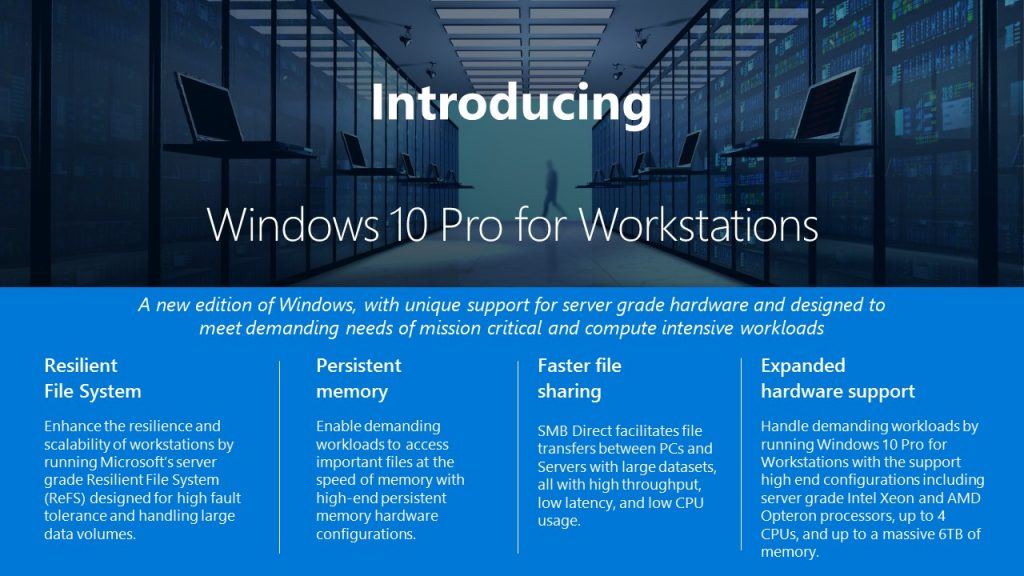
Windows 10 pro for Workstation is going to have these features:
- ReFS (Resilient file system) support. (new Microsoft file system)
ReFS provides cloud-grade resiliency for data on fault-tolerant storage spaces and manages very large volumes with ease. ReFS is designed to be resilient to data corruption, optimized for handling large data volumes, auto-correcting and more. It protects your data with integrity streams on your mirrored storage spaces. Using its integrity streams, ReFS detects when data becomes corrupt on one of the mirrored drives and uses a healthy copy of your data on the other drive to correct and protect your precious data. - Persistent memory support:
Windows 10 Pro for Workstations provides the most demanding apps and data with the performance they require with non-volatile memory modules (NVDIMM-N) hardware. NVDIMM-N enables you to read and write your files with the fastest speed possible, the speed of the computer’s main memory. Because NVDIMM-N is non-volatile memory, your files will still be there, even when you switch your workstation off. - SMB Direct support and lan card based on Remote Direct Memory Access (RDMA)
- CPU Intel Xeon and AMD Opteron support till 4 CPU and 6 TB RAM.
Actually Windows 10 versions are going to become 12 (from 10):
- Windows 10 Home
- Windows 10 Pro
- Windows 10 Enterprise
- Windows 10 Education
- Windows 10 Pro Education
- Windows 10 Enterprise LTSB
- Windows 10 Mobile Enterprise
- Windows 10 Mobile
- Windows 10 IoT
- Windows 10 S
- Windows 10 Team
- Windows 10 Pro for Workstations
Here it is relative recap:
GPO - Wifi pcs and policy applying problems
Company laptop that connect to domain via WiFi could not apply correctly policies due to WiFi connection unavailability.
There are two alternatives to solve issue customizing properly GPO:
You can do this with Group Policy, using the Always wait for the network at computer startup and logon policy setting.
https://technet.microsoft.com/en-us/library/gg486839.aspx

Alternatively adding a delay during policy appling this policy:
Policy Location: Computer Configuration > Policies > Admin Templates > System > Group Policy
Setting Name: Startup policy processing wait time
Registry Key: HKLM\Software\Policies\Microsoft\Windows\System!GpNetworkStartTimeoutPolicyValue
https://support.microsoft.com/it-it/help/2421599/windows-7-clients-intermittently-fail-to-apply-group-policy-at-startup
There are two alternatives to solve issue customizing properly GPO:
You can do this with Group Policy, using the Always wait for the network at computer startup and logon policy setting.
https://technet.microsoft.com/en-us/library/gg486839.aspx
Alternatively adding a delay during policy appling this policy:
Policy Location: Computer Configuration > Policies > Admin Templates > System > Group Policy
Setting Name: Startup policy processing wait time
Registry Key: HKLM\Software\Policies\Microsoft\Windows\System!GpNetworkStartTimeoutPolicyValue
https://support.microsoft.com/it-it/help/2421599/windows-7-clients-intermittently-fail-to-apply-group-policy-at-startup
Tips - Fix network connection issues in Windows 10
Here it is an interesting Microsoft article that well explain several easy workaround useful to reset windows 10 network issues.
you can use this command line syntax executing command prompt with Administrative rights:
ipconfig /flushdns
netsh winsock reset
netsh winsock reset proxy
https://support.microsoft.com/en-us/help/10741/windows-10-fix-network-connection-issues
you can use this command line syntax executing command prompt with Administrative rights:
ipconfig /flushdns
netsh winsock reset
netsh winsock reset proxy
https://support.microsoft.com/en-us/help/10741/windows-10-fix-network-connection-issues
<------------>
Using network reset should be the last step you try. Consider using it if the steps above don’t help to get you connected.
This can help solve connection problems you might have after upgrading from a previous version of Windows to Windows 10, as well as fix problems where you can connect to the Internet but not to shared network drives. It removes any network adapters you have installed and the settings for them. After your PC restarts, any network adapters are reinstalled, and the settings for them are set to the defaults.
Note
To use network reset, your PC must be running Windows 10 Version 1607 or later. To see which version of Windows 10 your device is currently running, select the Start button, then select Settings > System > About.
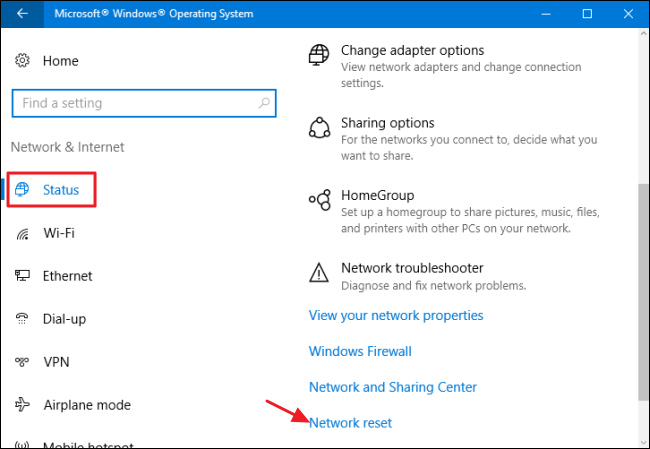
- Select the Start button, then select Settings > Network & Internet > Status > Network reset.
- On the Network reset screen, select Reset now > Yes to confirm.Wait for your PC to restart and see if that fixes the problem.
Notes
After using network reset, you might need to reinstall and set up other networking software you might be using, such as VPN client software or virtual switches from Hyper‑V (if you're using that or other network virtualization software).
Network reset might set each one of your known network connections to a public network mode. In a public network mode, your PC is not discoverable to other PCs and devices on the network, which can help make your PC more secure. However, if your PC is part of a homegroup or used for file or printer sharing, you’ll need to make your PC discoverable again. To do this, go to Settings > Network & Internet > Wi-Fi . On the Wi-Fi screen, select Manage known networks > the network connection you want to change > Properties, and then turn on the switch under Make this PC discoverable.
Subscribe to:
Posts (Atom)