Windows 7/8/10 - How to enable God Mode

Windows God mode is a simple folder that contain all Windows 7/8/10 Administration shortcuts in a single place.

To enable God mode you simple need to create a folder with this name:

God Mode .{ED7BA470-8E54-465E-825C-99712043E01C}

We will have a single folder with control panel and any other windows command.

<--------->


Il God Mode è sostanzialmente una cartella semplice che porta tutti gli aspetti di controllo di Windows 7/8/10 in un solo luogo. 
Racchiude infatti tutte le funzioni del Pannello di controllo, la personalizzazione dell’interfaccia, le opzioni di accessibilità e quasi ogni aspetto del controllo di Windows 7 .

God Mode è molto facile da attivare e basta semplicemente seguire questi due passi:


  • creare una nuova cartella, in qualunque posto preferiamo del nostro PC;
  • rinominiamo la cartella incollando questo nome, esattamente così come appare: GodMode.
  • God Mode .{ED7BA470-8E54-465E-825C-99712043E01C}

Ecco, adesso avremo in una sola cartella, con l’icona del Pannello di controllo, tutti i controlli sul nostro Windows 7/8/10.

Old article:

http://www.alessandromazzanti.com/2010/12/attivare-il-god-mode-in-windows-7.html

Exchange 2010 - How to monitor Exchange Health

There are several ways to monitor Exchange Server

In precedent article I mentioned powershell script for that purpose on Exchange 2013 server.

http://www.alessandromazzanti.com/2015/06/exchange-2013-how-to-monitor-it-with.html

1. you can at first remotely execute this commands

Test-Servicehealth
Test-ServiceHealth SERVERNAME
Test-ServiceHealth br-ex2010-mb | ft Role,RequiredServicesRunning -auto

Get-ExchangeServer | Test-ServiceHealth | ft Role,RequiredServicesRunning -auto

Get-MailboxDatabase 
Get-MailboxDatabase -Status | ft name,last* -auto

Get-MailboxDatabaseCopyStatus | fl name, contentindexstate

(Get-DatabaseAvailabilityGroup) | ForEach {$_.Servers | ForEach {Get-MailboxDatabaseCopyStatus -Server $_}}

Test-MapiConnectivity - server SERVERNAME

Test-MailFlow between two databases/servers


2. Generate Health Report for an Exchange Server 2016/2013/2010 Environment


This PowerShell script performs a series of health checks on Exchange Server 2010 and 2013 Database Availability Groups and then outputs the results to screen or HTML email.


https://gallery.technet.microsoft.com/office/Generate-Health-Report-for-19f5fe5f

3. Here they are full Microsoft List scripts:

https://gallery.technet.microsoft.com/site/search?query=exchange%202010%20health%20check&f%5B2%5D.Value=exchange%202010%20health%20check&f%5B2%5D.Type=SearchText&f%5B0%5D.Value=Exchange&f%5B0%5D.Type=RootCategory&f%5B0%5D.Text=Exchange&f%5B1%5D.Value=Exchange2010&f%5B1%5D.Type=SubCategory&f%5B1%5D.Text=Exchange%202010&ac=5

4. Exchange 2010 Health Check

The purpose of this PowerShell script is to send a report on the health of various areas of the Microsoft Exchange 2010 environment.  This script should work with PowerShell 2.0 and later.This script is designed so that it can be run in an automated fashion from a Scheduled Task.

https://gallery.technet.microsoft.com/Exchange-2010-Health-Check-647cd668


<---------->

Consider that these scripts can be scheduled to monitor continuously

005

[update -1]

Test-ReplicationHealth servername

Get-ClientAccessServer | Test-MRSHealth | Fl check,Passed,Identity,IsValid
Get-ClientAccessServer | Test-MRSHealth

Interesting article:

http://www.computerperformance.co.uk/exchange2010/exchange_2010_powershell.htm

[update 2]

http://exchangeserverpro.com/powershell-script-exchange-server-health-check-report/

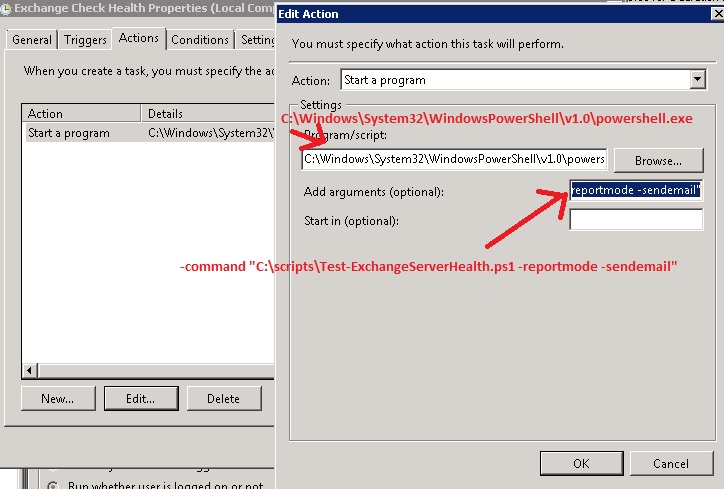
scheduled task syntax
-command 

"C:\_Script_Monitoring\Test-ExchangeServerHealth_1_0.ps1 -SendEmail -ReportMode -Log"

c:\Windows\System32\WindowsPowerShell\v1.0\powershell.exe

My scheduled task settings for this script are:

•Run whether user is logged on or not

•Run with highest privileges

•Action: Start a program 

•Program: powershell.exe

•Arguments: 

-command “C:\Scripts\ExchangeServerHealth\Test-ExchangeServerHealth.ps1 -Log -SendEmail”

<-------->

You could be interested to these similar article too:

Exchange 201X- How get all users who have a forwarding email, redirect rule and delegate permission on them mailboxes or Outlook folders

Exchange 2013 - How to monitor it with powershell command

Exchange - Microsoft Exchange Server User Monitor

Exchange 2010 - Poster dell'architettura

Exchange 2010 - How to monitor Exchange Health

Exchange 2010 - How export to pst single mailbox or all mailboxes with single command or powershell command

Exchange 2013 - How to monitor it with powershell command

Exchange 2010 - How to get info on Mobile devices connected via ActiveSync, quarantine any new device and remote Wipe them.

Exchange 2003/2010 - Add a photo to user contact


Exchange - Your Administrator has made a change and requires you to restart Outlook

If you are facing this kind of problem on Exchange and outlook there are severar reason fo that.


1. At first you can download this tool and evaluate any Office 20XX client problems

Office Configuration Analyzer Tool (OffCAT) information

https://support.microsoft.com/en-us/kb/2812744

https://www.microsoft.com/en-us/download/details.aspx?id=36852


The problem arises when an Outlook client connects to the CAS array and initially, if outlook connects to the CAS array member that contains the PF role, then Outlook converges all connections and displays both the Public and Private logons as one single connection (the CAS array name). When the Clients IP address changes, and it Re-connects, if it gets connected to a CAS array member that does not have the PF server, then we get an ECwrong server Response from Exchange, Outlook in its reconnect logic Cannot follow the Redirection Result that contains the correct PF server name, and displays the Error "The Administrator has made a change that requires you restart Outlook"

2. Mitigations:

You have the option to completely suppress the dialog:


How to suppress the pop-up "The Microsoft Exchange administrator has made a change that requires you quit and restart Outlook" in Outlook 2010

• Uncheck the option “Show Microsoft Exchange Messages” from the Outlook icon on taskbar, and test the behavior.


This setting is controlled by the registry value..

HKEY_CURRENT_USER\Software\Microsoft\Office\14.0\Outlook\Display Types\Balloons

Name: Exchange

Type: DWORD

Value: 1 (on) / 0 (off)

3. It could be related to Public folder problem

https://msexchange.me/2014/04/20/the-microsoft-exchange-administrator-has-made-a-change-that-requires-you-quit-and-restart-outlook/

https://exchangemaster.wordpress.com/tag/the-microsoft-exchange-administrator-has-made-a-change-that-requires-you-quit-and-restart-outlook/

https://msexchange.me/2014/04/20/the-microsoft-exchange-administrator-has-made-a-change-that-requires-you-quit-and-restart-outlook/

http://paulroman.pras.ro/2012/08/the-microsoft-exchange-administrator.html

4. If you put in standby your pc and outlook is not correctly closed autodiscover and pc wake un can give you that alert


[update 2016.05.18]

5. Here is an interesting article that explain ADSI edit check to view if Exchange DB references to wrong Public Folder DB

https://jaapwesselius.com/2014/08/05/the-microsoft-exchange-administrator-has-made-a-change/

[UPDATE 2016.05.30]

On a DAG Exchange 2010 configuration here is an interesting article that indicate public folder wrong configuration was the main problem, in my case was the correct answer.

On a Exchange server PF was correctly configured with replication, on the other one PF was not well configurated replication, once done that everythings worked better.

http://www.msexchangegeek.com/the-microsoft-exchange-administrator-has-made-a-change-that-requires-you-quit-and-restart-outlook/

Exchange - Console "The attempt to connect to http://yourserver/PowerShell using "Kerberos" authentication failed"

If you get this error with Exchange 2010 console:

The attempt to connect to http://exchange.contoso.com/powershell using 'Kerberos' authentication failed: Connecting to the remote server failed with the following error message : WinRM cannot process the request. The following error occurred while using Kerberos  authentication: The network path was not found.

The solution is to first export and then delete

- You must laungh regedit --> HKEY_CURRENT_USER\SOFTWARE\Microsoft\ExchangeServer\v14\AdminTools

- Look for value NodeStructureSetting.

- If it is there, back it up and then remove it.

Server - DCPromo out fails unable to determine the ownership of floating single-master operation roles.

We faced this error during dcdemote

DCPromo out fails with: The directory service is missing mandatory configuration information, and is unable to determine the ownership of floating single-master operation roles.

Following commad was correct:

netdom query fsmo

But on all dc there was old informations that pointed to old PDC DC that no longer exist:

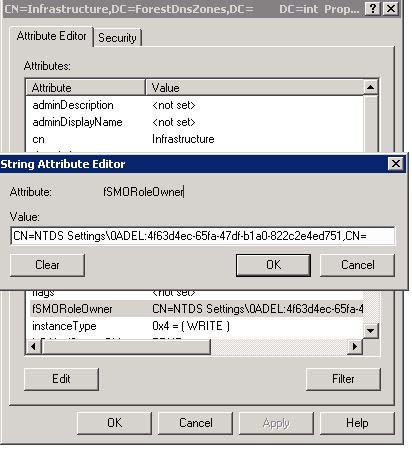
dsquery * CN=Infrastructure,DC=ForestDnsZones,DC=sevescorp,DC=com -attr fSMORoleOwner

output

CN=NTDS Settings\0ADEL:123412345-1234-1234-1234-123123123123,CN=XXXX-AD\0ADEL:123412345-1234-1234-1234-123123123123,CN=Servers,CN=xxxx,CN=Sites,CN=Configuration,DC=xxxxxxxx,DC=com

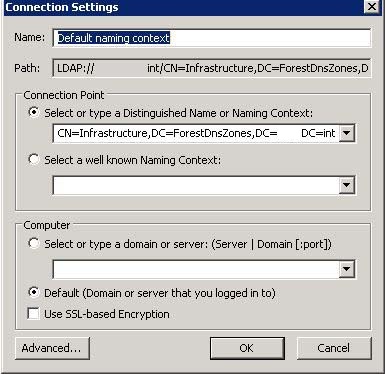
then we opened ADSIEdit.msc and connected to: 

CN=Infrastructure,DC=ForestDnsZones,DC=domain,DC=int


and we changed these information to correct one:


You must execute this activities on schema master DC

Same procedure must be replicated on 

CN=NTDS Settings,CN=,CN=Servers,CN=,CN=Sites, CN=Configuration,DC=domain,DC=local

With ADSI edit using this article on point 3.:

http://www.more2know.nl/tag/fsmoroleowner/

To get correct string you need to view point 1. of precedent article and mainly going here:


Here is another useful article:

http://www.zerohoursleep.com/2011/07/dcpromo-out-fails-with-the-directory-service-is-missing-mandatory-configuration-information-and-is-unable-to-determine-the-ownership-of-floating-single-master-operation-roles/

we changed this information and thereafter they was correctely replicated and dcdemote was working fine

Scripting - How to refresh remote client ip

If you need to force remote pc to refresh ip Address you can use use this procedure.

1. Download psexec.

2. Save this cmd script in remote c: drive

@echo off
ipconfig /release && ipconfig /renew

3. Execute this command:

psexec \\remotepcnameorip -e -u domain\user -p password -h “c:\scriptname.cmd”